
Mobile app (Android and iOS)
A native phone client for the hub: the same API as the web UI, with screens built for a finger rather than a mouse. The hub itself does not change — the app is just another way to talk to it, like a browser. One Kotlin Multiplatform code base for Android (8 or newer) and iOS (16 or newer): the APK comes with releases, the iOS version is built from source for now — it is not published to the App Store.
Beta
The app is new. Everything it does is checked by decoding real server responses in tests, but it has seen few devices so far — please report oddities in issues.
Installation
Every nkt release carries a signed nkt-android-<version>.apk (checksum in SHA256SUMS). Download it on the phone and open it — Android asks to allow installs from that source. Updating is the same: the new APK installs over the old one, sign-in and settings are kept.
The app version is the nkt version: app 1.11.150 is written for hub 1.11.150. Both are shown in the app's About screen; with a newer hub the app works, but may lack the hub's newest sections.
Language
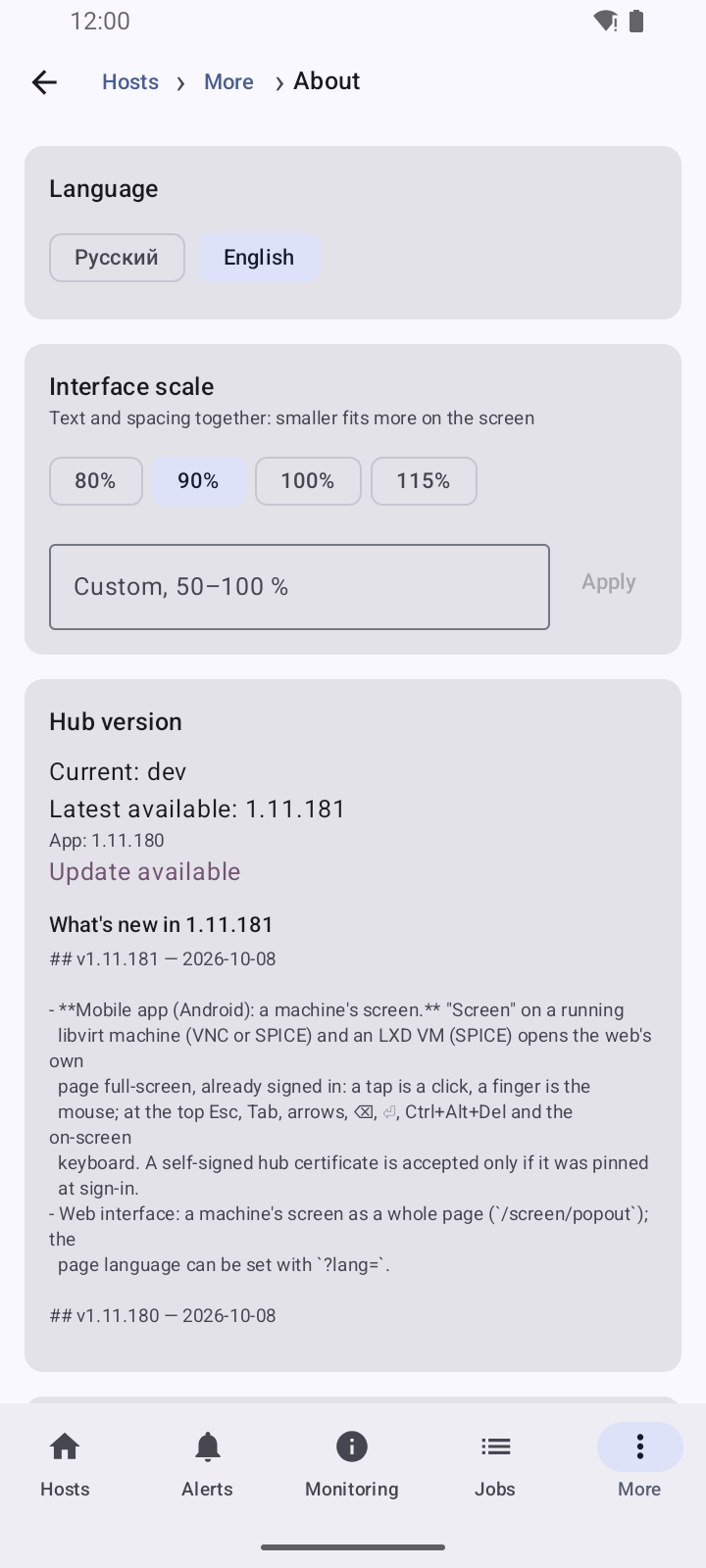
The interface is in Russian and English. By default it follows the phone language (Russian; any other — English). Switch it on the sign-in screen or in About, instantly, without a restart. Server messages — errors, job logs, alert and problem texts — come in the same language.
Sign-in
The hub address is the one used in the browser (http://192.168.1.10:8077 or https://hub.example.com); the login and password are a hub account. The session survives app restarts.
If the hub serves a self-signed certificate (NKT_TLS_ENABLED), the app remembers it on first sign-in and checks it afterwards: a swapped certificate is an error, not a silent connection. The fingerprint is shown in About; after reinstalling the hub, reset the remembered certificate there.
What's inside
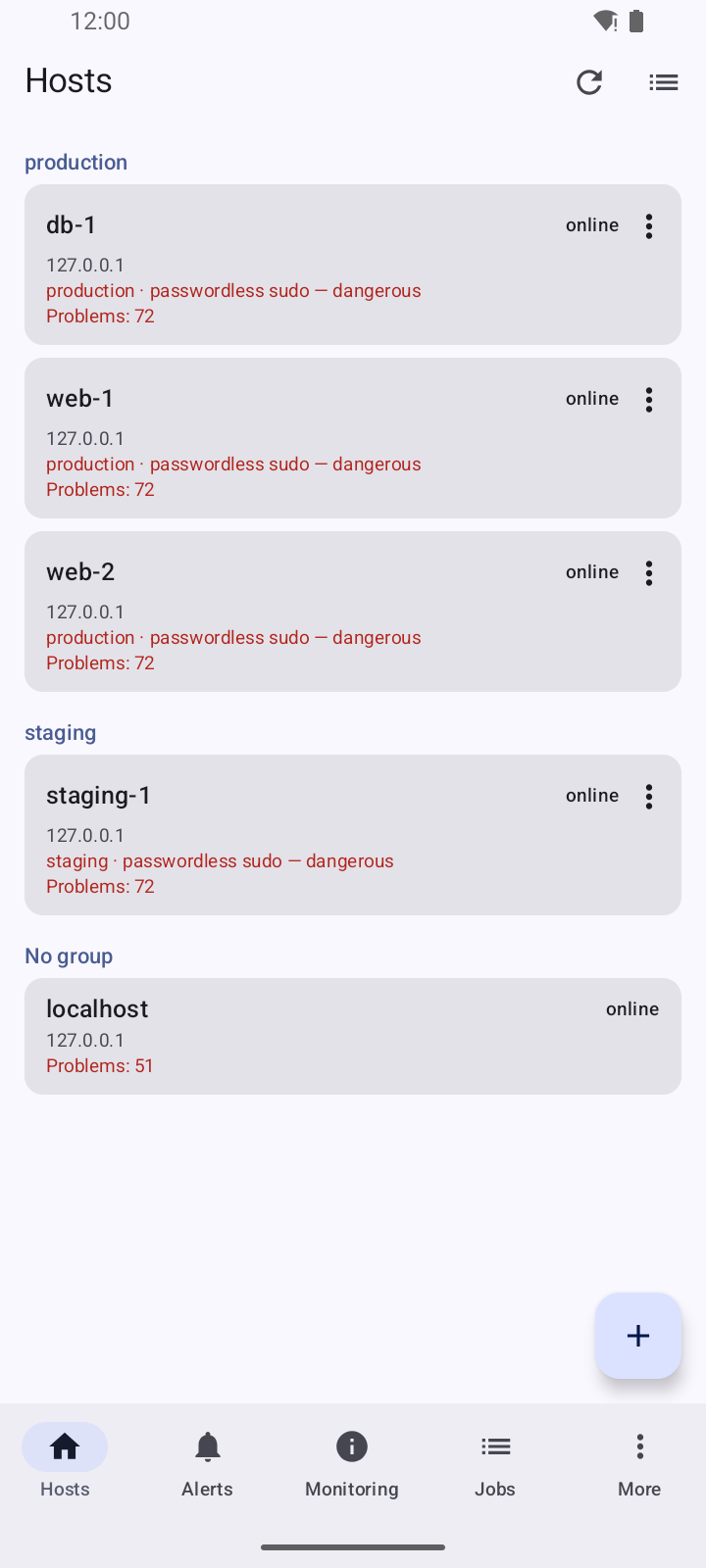
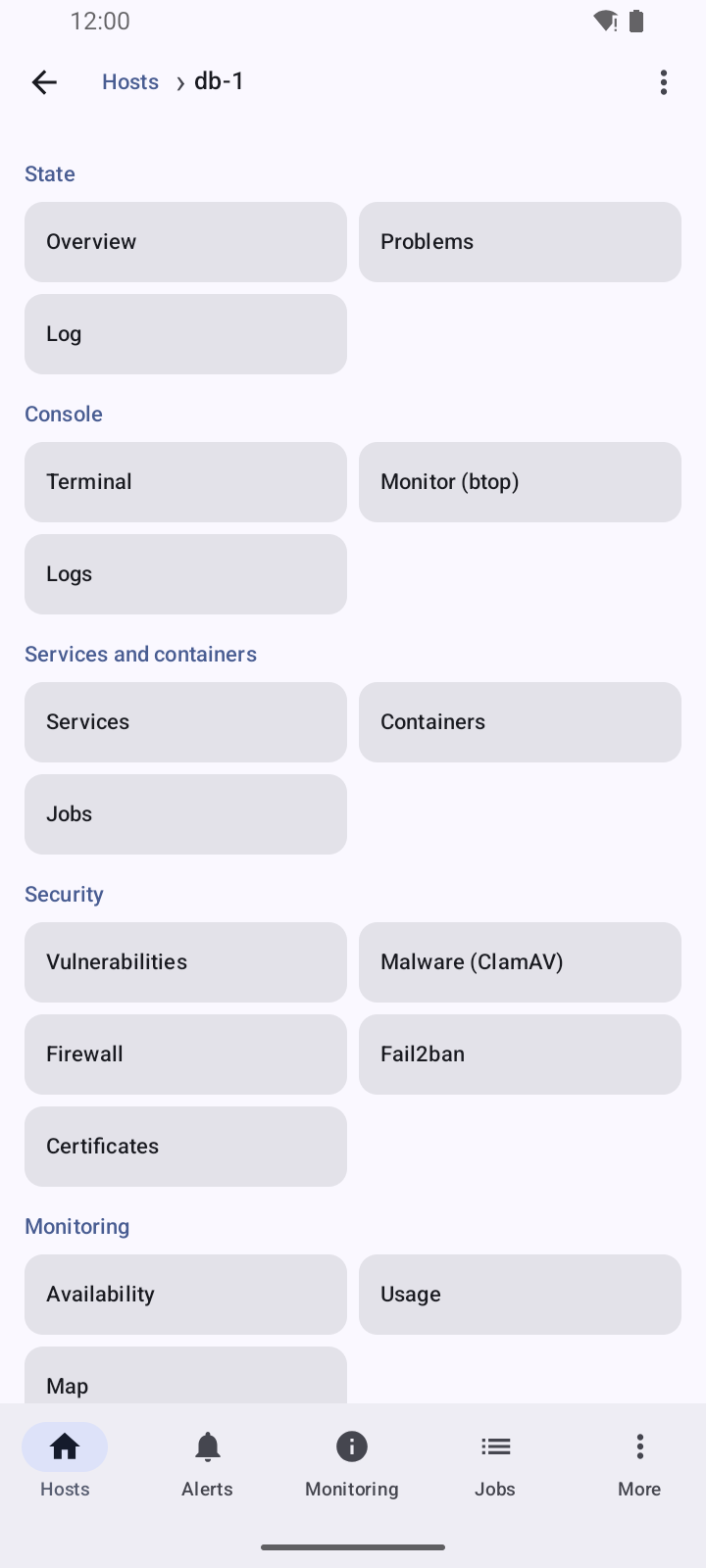
Navigation. At the bottom (at the side on a tablet or in landscape) are the hub sections: hosts, alerts, monitoring, jobs, “more” (fail2ban, deployments, about). The top bar's title is breadcrumbs, e.g. Hosts › web-1 › Containers › acme-app: each one goes back to its level, and the system Back button goes back one step.
A small screen. About has the interface scale: 80, 90 (the default), 100 or 115 %, or a percent of your own from 50 to 100 — text and spacing shrink together, so more fits on the screen. Rows of buttons wrap to the next line instead of running off the edge. Rotating the phone does not interrupt the terminal or a console, and with a phone on its side the hub sections are a rail at the side so they take no height.
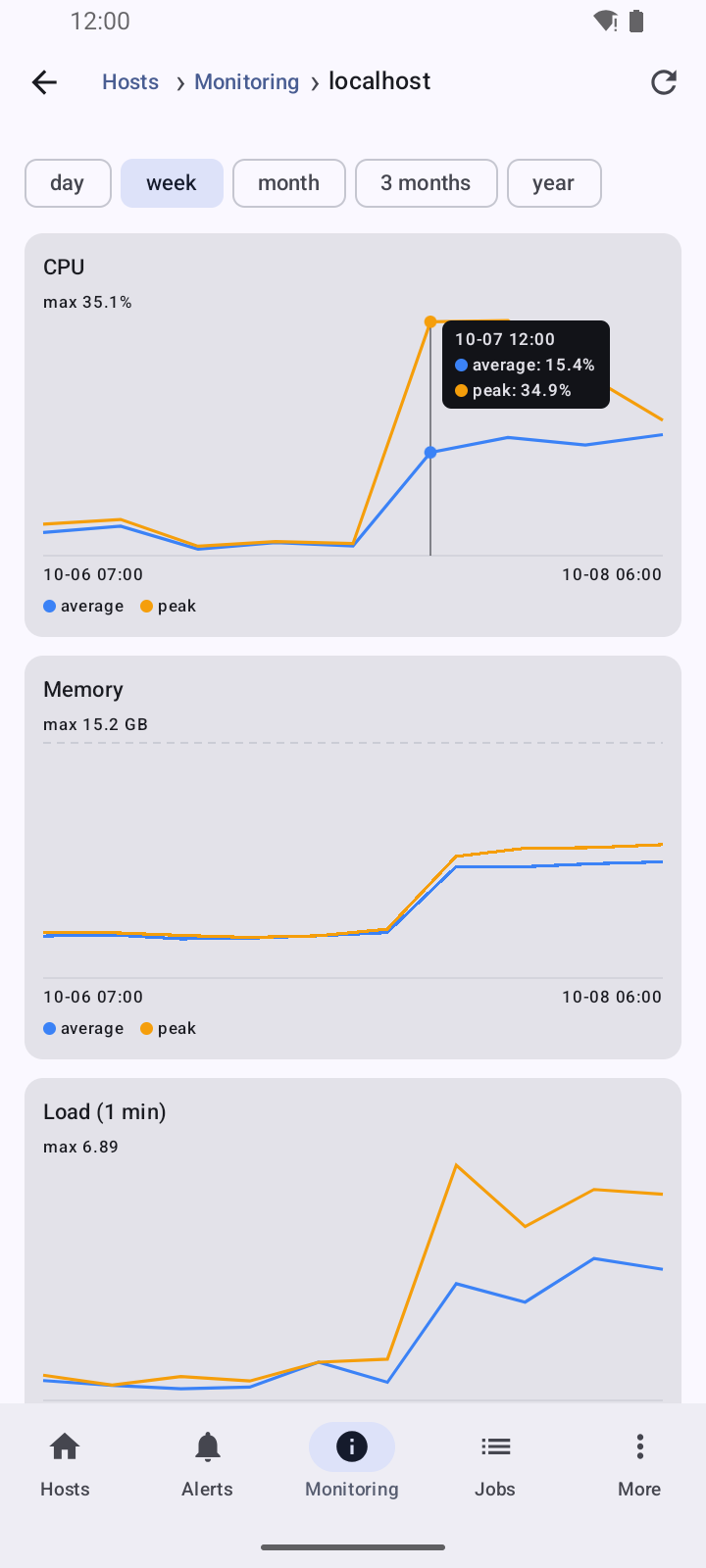
Charts are the web's: the host's "Usage", a target's history in "Availability" (tap a target — availability in % and latency over a day, a week, a month) and a host's charts in the hub's "Monitoring" (tap a host — CPU, memory, load, disk fill over a day up to a year). A finger on a chart marks the nearest bucket and shows its time and every line's value; slide sideways and the mark follows. The readout stays after the finger is lifted and goes away with a tap outside the chart; up and down the page scrolls as usual.
Background operations. While a job runs somewhere — on the hub or on any host, whoever started it — the top bar shows an icon with their count. A tap shows the list (host, job, step and a bar), and picking one opens the job's live log.
Host list — by group: state, number of problems, Kubernetes role, sudo (passwordless in red), an nkt version behind the hub. The list icon on top manages groups (create, rename, delete).
Host management (admins): “+” adds a host — address, SSH user and sign-in with a password, your own key or a hub key (the app then shows the line for the host's authorized_keys), and optionally installs nkt right away. A row's “⋮” menu has install, update to the hub's version or reinstall of nkt (a hub job with a live log), the last install log, moving to a group, and deleting: from the hub only, or together with nkt on the host itself (service, data, the hub's access; password sign-in is restored). If the host already runs a foreign nkt, the app asks whether to install over it.
A host opens as a grouped list of sections: overview, problems (each with a jump to where it is fixed), terminal and btop, logs, services, containers, vulnerabilities, ClamAV, availability, usage, configs, firewall, certificates, interfaces, the resource map, users, jobs, fail2ban, audit log. Details are pages of their own: a container (“Inspect” with environment variables), a config file (edit, history, rollback), a job (live log and cancel), a pipeline (history and rollback). The host's “⋮” menu has reboot: the app first shows what is running and what will not come back by itself. "Availability" has targets of your own (ping, TCP, HTTP, HTTPS — an address no host config mentions), and each target has "check now" and enabling/disabling checks. Stopping and restarting an LXD instance and "Save" for Docker images run as a host job — its log opens at once.
The terminal takes the whole screen. If the host has tmux, the session opens in it and survives a dropped connection: the app re-attaches to the same session by itself. The key bar has Enter after the arrows. The “tmux ▾” button on the key bar has tmux actions without typing Ctrl+B …: new window, next and previous, window list, splits, scroll mode, detach, mouse on/off. Without tmux a plain shell opens with an offer to install tmux — the install runs with live output.
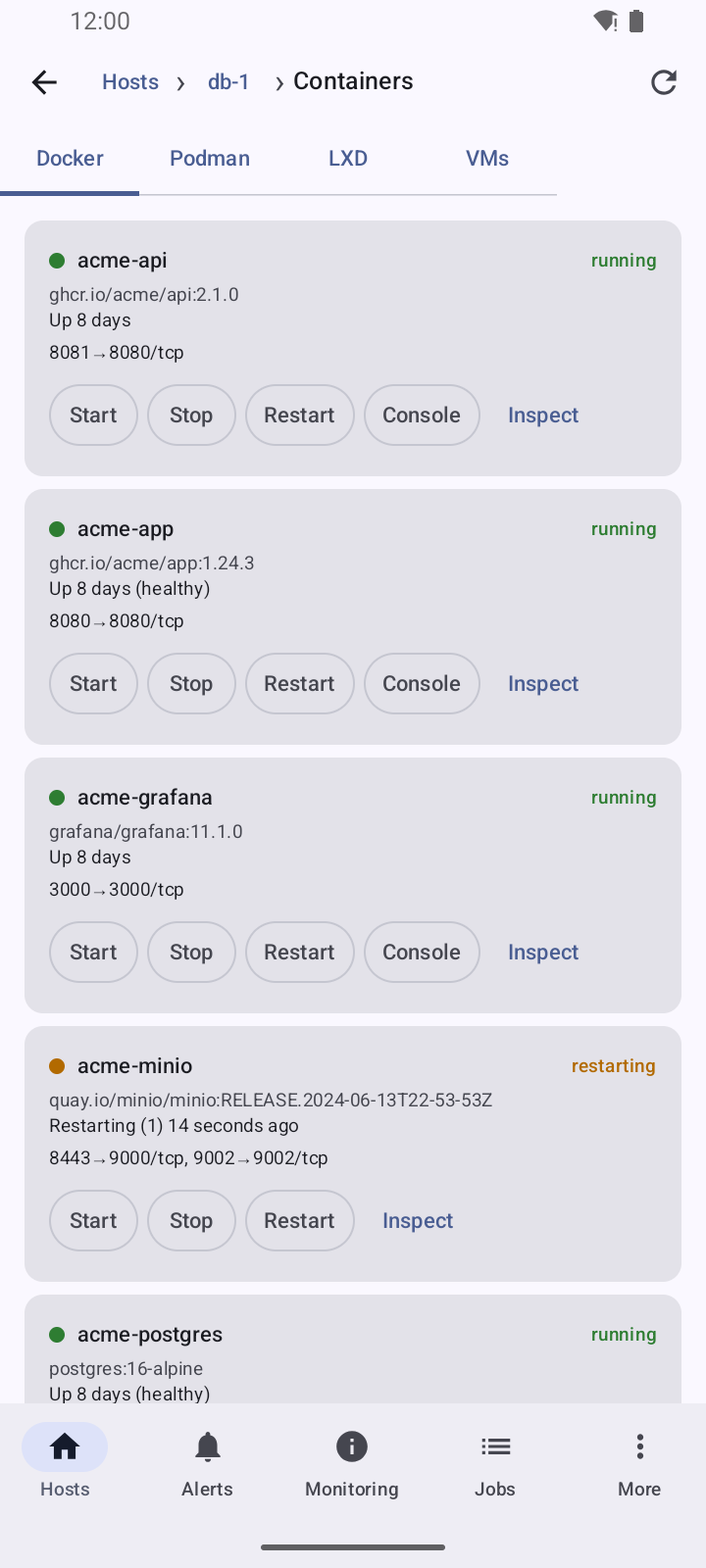
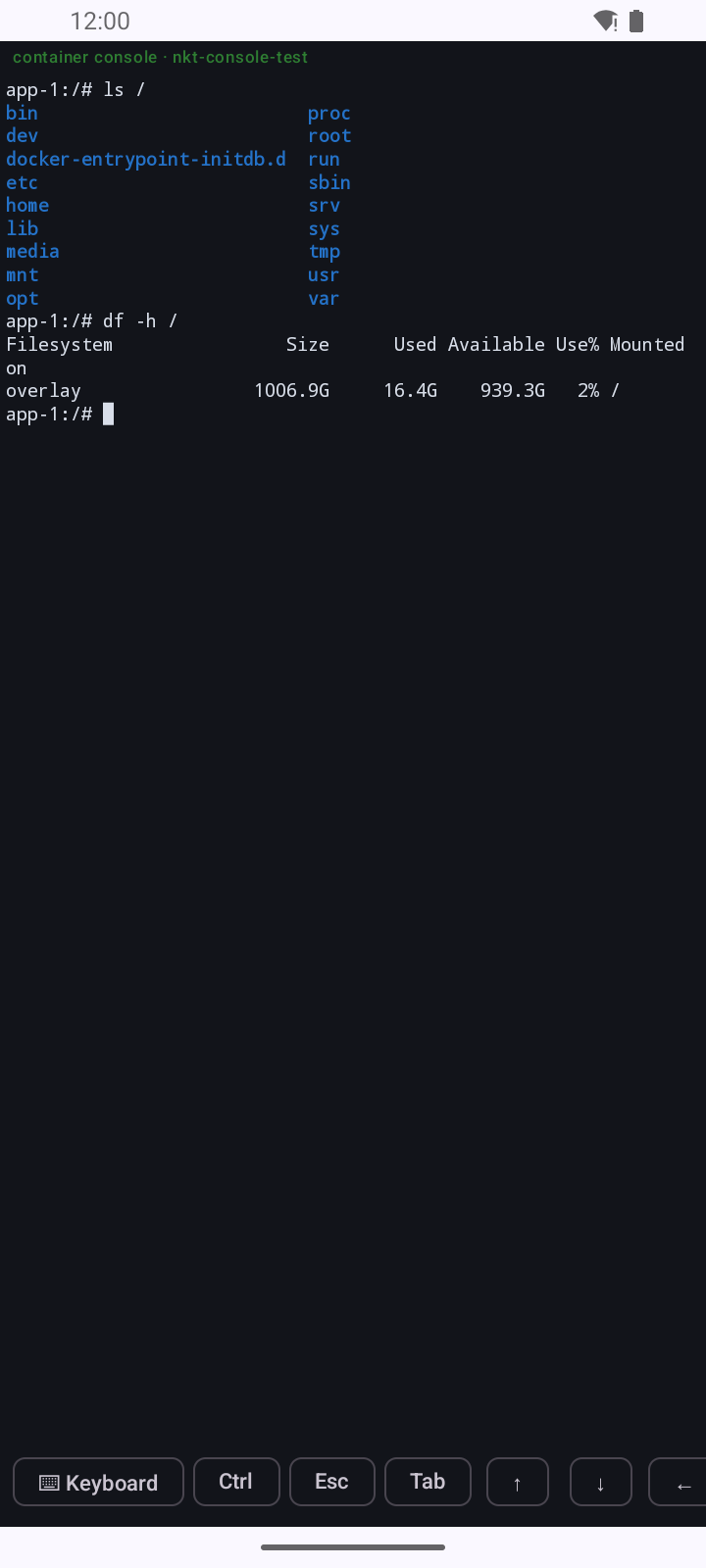
The console of a Docker or Podman container, an LXD instance or a libvirt machine is the "Console" button on a running one's card in "Containers". It opens the same full-screen terminal. Docker and Podman ask for the user first (empty — the image's default user); for a machine it is the serial console (virsh console): the app presses Enter itself to bring up the login prompt, and Ctrl+] leaves virsh. Like the terminal, the console needs NKT_TERMINAL_ENABLED=true on the host — otherwise the app says so.
A machine's screen (Android) is the "Screen" button on a running libvirt machine's card (VNC when the machine has it, SPICE otherwise) and on an LXD virtual machine (SPICE). It opens the web interface's own screen page (noVNC and spice-html5) full-screen in an embedded browser, already signed in. A tap is a click, a moving finger is the mouse, two fingers zoom. The picture takes the whole screen, and all controls are in a floating menu: a round button in a corner (the ring colour is the state: green — connected, yellow — connecting, red — error) that can be dragged with a finger; its place is remembered. The menu holds Esc, Tab, arrows, ⌫, ⏎, Ctrl+Alt+Del and "⌨ Keyboard" (the on-screen keyboard: what you type reaches the machine as typed on a US layout), zoom and a hint; a tap outside folds it. A connection error shows as a strip at the top for a few seconds.
Zoom, in steps of 10%: in portrait 50–150%, 100% fits the whole picture; in landscape 50–200%, 150% fits the screen width exactly ("↔"), 200% is a third wider than the screen. "⤢" fits the whole picture again; remembered per machine and orientation. Above 100% "Move" lets you scroll the picture with a finger (touches then don't reach the machine).
A machine in the common host list (inside a host, under "+" on the web) has a "Screen" button that opens through its host. If the machine has no nkt (Windows or nkt not installed), instead of empty sections there is "no nkt on the machine" and the same "Screen". The embedded browser opens only the hub's pages; it accepts a self-signed hub certificate only if it is the one pinned at sign-in (Android 10 and newer). There is no screen on iOS yet.
Hub sections:
| Section | What |
|---|---|
| Alerts | the hub journal with a kind filter; “To host” opens the host right at the relevant section |
| Hub jobs | deployments, fleet bans and other hub jobs with a live log and cancel |
| Monitoring | what needs attention (disks, leaks, availability drops), host CPU, memory and disks, cluster nodes |
| Fail2ban | banned addresses across all hosts; ban and unban everywhere as a hub job |
| Deployments | pipelines: deploy, dry run, log, history with rollback, old stacks left on a previous host |
Creating and editing pipelines, profiles, scripts, clusters, hub export and import, and settings stays in the web UI: those are editors with diffs, not phone work.
Notifications
Alerts has a “Phone notifications” switch. When on, every 15 minutes (Android does not allow background checks more often) it asks the hub for new events and shows the kinds the hub also sends to Slack/Telegram — the choice comes from the hub's alert settings; the phone keeps no list of its own. Tapping a notification opens the host at the event's section. The first check only notes where the journal is — old events do not pop up.
The app uses no push service (Firebase): the hub needs no Google account or server key, and the phone reaches the hub itself, like a browser.
Building from source
The code is in mobile/ (how it is organised — mobile/README.md).
mobile/scripts/setup-toolchain.sh          # JDK 17 and Android SDK in ~/.local, no root
mobile/scripts/build.sh testDebugUnitTest  # tests
mobile/scripts/build.sh                    # debug APK
The APK is mobile/androidApp/build/outputs/apk/debug/androidApp-debug.apk. A debug build is signed with a developer key and will not install over a release build (or the other way round) — uninstall the app first.
iOS builds on macOS with Xcode only:
brew install xcodegen
cd mobile/iosApp && xcodegen generate && open iosApp.xcodeproj
It can be installed on your own iPhone from Xcode with a free Apple account; publishing (TestFlight, App Store) needs a paid Apple Developer account. The app's CI build (.github/workflows/mobile.yml) is started by hand: Actions → "mobile" → Run workflow, platform android (tests and a debug APK), ios (the simulator build) or both; from a terminal — gh workflow run mobile.yml --ref main -f platform=ios.
Notifications on iOS are best effort: background refresh runs when the system decides, and every 15 minutes cannot be guaranteed.
Signed APK in a release
The release builds it (.github/workflows/release.yml, job android-apk) when the repository secrets hold a signing key. The key is created once:
keytool -genkeypair -keystore nkt-release.jks -alias nkt \
  -keyalg RSA -keysize 4096 -validity 36500
base64 -w0 nkt-release.jks   # → secret ANDROID_KEYSTORE_BASE64
keytool comes with the JDK (after mobile/scripts/setup-toolchain.sh it is in ~/.local/jdk-17/bin). Put the .b64 content on the clipboard directly rather than copying it from the terminal window — clip.exe < nkt-release.b64 on WSL, xclip -sel clip < … or pbcopy < … — otherwise line breaks end up in the secret.
Secrets: ANDROID_KEYSTORE_BASE64, ANDROID_KEYSTORE_PASSWORD, and ANDROID_KEY_PASSWORD only if the key password differs. The key alias is the repository variable ANDROID_KEY_ALIAS (Variables, not Secrets), nkt by default. Without the secrets the release ships without an APK; a key that does not open with the password is reported right away. Keep the key separately and safely: a lost key means installed apps can no longer be updated.
Beta release of the app only
To publish the app separately from nkt: Actions → android-beta-release → Run workflow. It runs the tests, signs the APK with the same key and creates a pre-release Android <version> (beta) tagged android-v<version>-beta with nkt-android-<version>-beta.apk and SHA256SUMS; the app's About shows the version as <version>-beta. Hubs do not see such a release and do not offer it as an update. Running it again for the same version replaces the APK in that release (and updates its title).
A locally signed build uses the same environment variables (NKT_ANDROID_KEYSTORE is the .jks path; the rest are passwords and alias):
NKT_ANDROID_KEYSTORE=$HOME/nkt-release.jks NKT_ANDROID_KEY_ALIAS=nkt \
NKT_ANDROID_KEYSTORE_PASSWORD=… NKT_ANDROID_KEY_PASSWORD=… \
  mobile/scripts/build.sh :androidApp:assembleRelease