
Hosts: adding, installing, access
Add a host
"Add host" on the "Hosts" page:
- Name — a label in the UI.
- Address — an IP or a DNS name.
- SSH port — usually 22.
- SSH user —
rootor a user with passwordlesssudo(NOPASSWD) — that's how typical VPS images are set up (ubuntu,debian,adminwith cloud-init). For a non-root user the installer addssudo -nitself; asudothat asks for a password fails with a clear error instead of hanging. - Login method:
- the hub generates a key (default, recommended) — after saving, the hub shows the public key and ready commands with a "copy" button: one to run on the host itself (creates
~/.ssh, appends the key toauthorized_keys, sets permissions), another — from your machine overssh. The private half never leaves the hub. The key can be shown again with the "key" button in the host row. - your own private key — the contents of
id_ed25519/id_rsa(not.pub), OpenSSH/PEM format, without a passphrase. The form checks the key right away and names the reason for a rejection: a.pubpasted, PuTTY.ppkformat (export to OpenSSH with puttygen), a key with a passphrase (remove it withssh-keygen -p). - password — a regular SSH password.
- the hub generates a key (default, recommended) — after saving, the hub shows the public key and ready commands with a "copy" button: one to run on the host itself (creates
Prepare a new host
For a fresh server that has only root and a password (on by default for password login, optional with the hub's key). Runs once, before installation; Debian/Ubuntu only — via apt-get; on another system it refuses honestly.
- Packages —
dbus sudo iproute2 procps ca-certificates curl tmux btop(the list is editable in the form). Withoutdbusthe terminal won't open and installs from the UI won't work, withoutiproute2the socket list is empty, withoutprocpsprocesses aren't linked to ports. - User (
nktby default) — with a home directory and aNOPASSWDrule in/etc/sudoers.d/. The file is first checked withvisudo -cfin a temporary location: a broken file insudoers.dbreakssudofor everyone at once. - Key instead of password — the hub generates a pair, appends the public half to
authorized_keysand verifies login with a new connection (for non-root —sudo -ntoo). Only then is the host record switched to the key; if the check fails, the password keeps working. - Disable password login (optional) — a drop-in
/etc/ssh/sshd_config.d/99-nkt-no-password.conf, checked withsshd -t, a reload without dropping sessions and one more key login check. If the daemon stops letting in after the reload, the drop-in is removed. A failure here doesn't abort the installation.
Switches in the host form
- API port — what nkt on the host listens on (loopback only). Empty — the hub-wide
NKT_HUB_HOST_API_PORT(8077). Changing it reinstalls nkt. - Web terminal — a root shell in the browser; off by default. Stored in the hub's database and passed to the host on every install — a manual edit of
nkt.envon the host is lost on the next update. - Fallback channel — on by default, see below.
- Packages through the hub cache — on by default, see Package cache.
Installation
After "Add host" press "install". Installation, like every update, is a hub job: a live log, the "Jobs" section, survives a page reload, cancellable with a button in the host row (really interrupts the current step). A transient SSH error (refused, dropped, timeout) is retried three times.
- SSH connection, architecture detection.
- The nkt binary for it — built from the hub's source or taken from the cache; without source — downloaded from GitHub Releases.
- Delivery of the binary, unit and
nkt.env. On every delivery the hub measures both paths — the host downloading the release from GitHub itself and an SFTP upload from the hub — and picks the faster one ("GitHub from the host X MB/s, SFTP from the hub Y MB/s"). GitHub is used only if the release asset is byte-for-byte identical to the hub's binary; the checksum fromSHA256SUMSis verified on the host. If the download fails, SFTP takes over in the same job. systemctl daemon-reload && systemctl enable netknownsthat && systemctl restart netknownsthat—restartspecifically, so an already running service picks up the new binary and environment.- A
/healthcheck and login with the host administrator account the hub keeps encrypted. If the host already had an account with another password (a previous manual install), the hub resets it withnkt passwdover the same SSH.
Once the status is "connected", "open" leads to the host's panel; on top there is a narrow hub strip with the host name and "back to hosts". A closed install log reopens with the "install log" button.
A hub restarted in the middle of an installation turns stuck "installing" entries into "error" on start — the buttons are available again.
Host list
While there are no hosts besides the localhost row, a "Where to start" card sits above the list with three paths:
- Add a host: the same form as the button in the list header, or import from another hub: its export file (see below).
- Look at the hub's machine: opens the localhost row with the findings, services, firewall and certificates of the machine the hub runs on.
- Try a deployment: goes to "Deployments", where "New pipeline" → "Examples" gives hello-app or httpbin on the hub's machine.
The "Help: a demo without servers" button opens the quick start with the fixtures mode. The card disappears as soon as the first host appears.
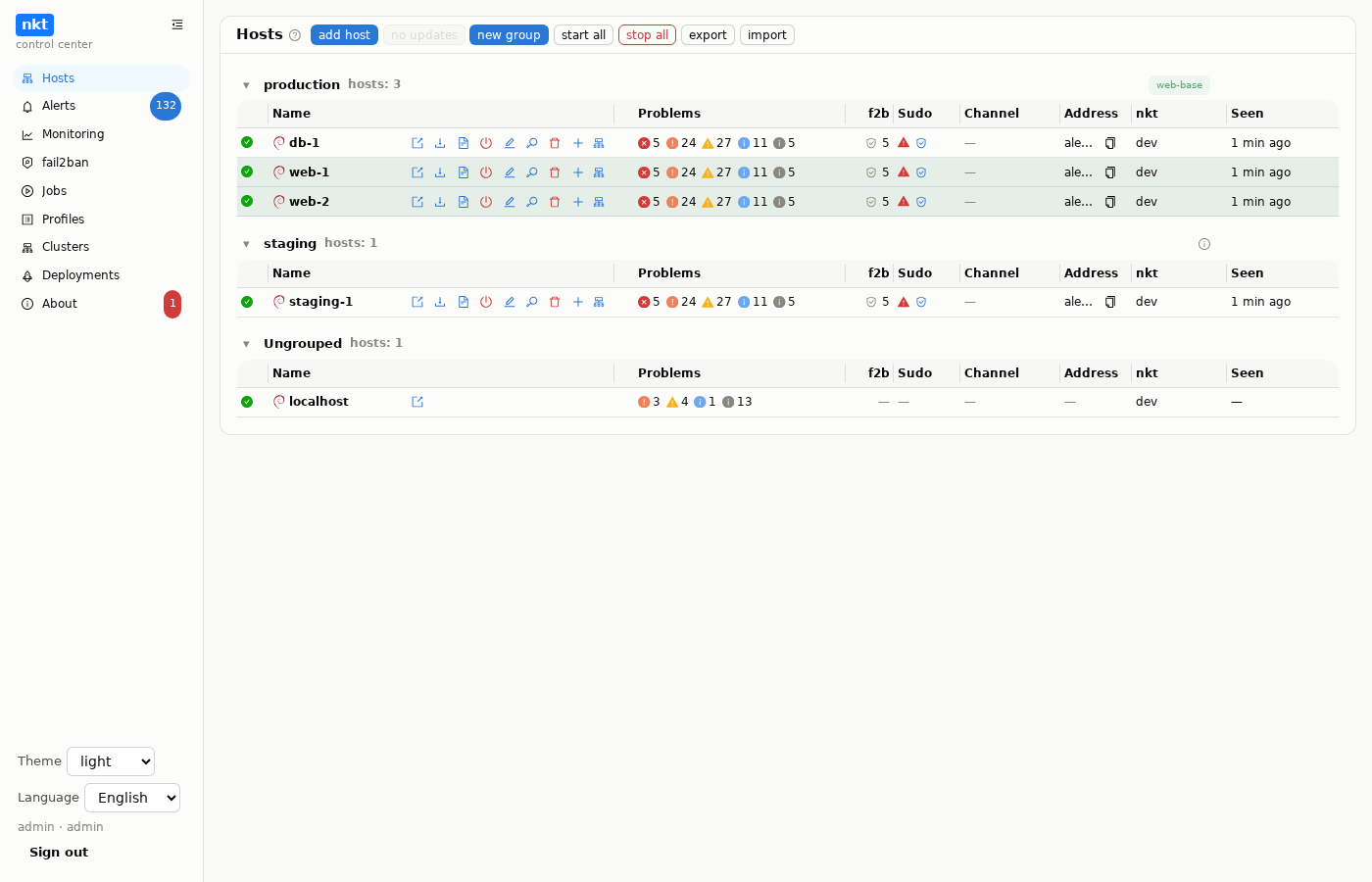
Each host takes one line, and the column widths are shared by all groups: the columns of different groups line up exactly and do not shift when the numbers change. Whatever does not fit is an icon with a tooltip.
- Availability icon before the name: green — answered the last poll, red — unreachable (the tooltip says when it last answered), gray — not polled yet. Polling — every
NKT_HUB_FINDINGS_POLL_INTERVAL(60 s) over the already open SSH connection. A click on a red or gray icon polls the host right away instead of waiting for the timer (the icon spins while polling); it changes nothing on the host, so read-only users can do it too. - OS icon right before the name — the host's distribution from its
/etc/os-release(Ubuntu, Debian, Alpine…; the tooltip gives the full name); the hub learns it on polling, an unreachable host keeps the last known one, a host never polled shows “?”. The same icon is in the opened host's header, host pickers, monitoring, alerts, fail2ban and hub jobs, and machines and containers inside a host show their own OS (see Containers and VMs). A machine without its own nkt (Windows) takes its OS from its host's machine list. A running machine under "+" has a "Screen" button: the screen window opens through its host, no nkt inside the machine is needed. - Address (before "nkt") —
user@address:port, with only the first two or three characters visible, so neither the user nor the address can be read on screen; in full in the tooltip, and the icon next to it copies the whole string. Machines inside a host show it the same way. - f2b — how many addresses fail2ban holds now (a shield and the number); a red pause icon means fail2ban is stopped, "—" that it is not installed.
- Findings — finding counters; for an unreachable host — a red disconnect icon (the tooltip says when it last answered) and numbers from the last successful poll (dimmed) or "no data".
- nkt — the nkt version on the host. If it differs from the hub or an update did not take effect, an orange ⚠ sign appears next to it ("on hub: …" or "installed … — the update did not take effect" in the tooltip), and the button becomes "update". "Open" on an outdated host updates it first and goes to the panel only after success. The comparison uses the hub version from the same response, so an old tab doesn't reinstall hosts in a loop after the hub is updated.
- Seen — when the host last answered.
- "Update all" — one hub job for all outdated hosts (its log opens right away, and leaving the page does not interrupt it), at most three at a time (otherwise dozens of SSH connections hit sshd's
MaxStartupsor a jump host). The confirmation window shows who gets updated and who doesn't: hosts where an update is already running or queued are left alone ("updating: N" next to the button), and ones that failed last time only with the "retry failed" checkbox. The job checks the connection itself before installing on each host (up to 3 attempts within a minute): a host without one is skipped, and the log ends with the result "updated, skipped without a connection, install errors". While updates run, the host list refreshes every few seconds. - Sudo — what the hub user is really allowed to do without a password, per the latest check of the host (after installation, update, narrowing, rule removal and when the "The hub's sudo" window opens): a red ⚠ for "passwordless" (dangerous: whoever signs in as this user gets root at once), a green shield for "narrow sudo" (see below), a green check for "password required", a grey question mark for "unknown". A click on the mark (and the "narrow sudo" button next to a red one) opens the "The hub's sudo" window: what is allowed, "Narrow sudo", "Remove the nkt rule" (after the removal the hub needs sudo or root again for updates).
- Channel — the fallback channel state: gray — off; green "connected" — held, regular SSH is used; yellow "via fallback" — SSH is unavailable right now, everything goes through the channel.
- "Edit" — name, address, port, user, login method; an empty secret field keeps the old one. "Forget host key" is there too.
- "Start all" / "stop all" —
systemctl start|stop netknownsthatover SSH on every host; not a reinstall.
If nkt on a host is restarting (package upgrade, self-update), the hub waits up to 20 s, trying to log in every 2 s, instead of failing. If the API never comes up, the error says so plainly: "SSH answers, but the nkt API on the host is not up" — with diagnostics gathered over SSH: the unit state, who listens on the API port, the last journal lines. "Update" from the hub reinstalls and restarts the service over SSH.
The hub's connection to a host. The hub keeps one shared SSH connection per host: polling, pages, live logs and the terminal all go over it. A failed request (the browser left the page, a request ran out of time on a busy host) does not close it — the hub checks it with an SSH keepalive and closes it only if it is really dead; one busy with running requests is not closed for idleness either. A hub login to the host cut off on the channel is retried over a fresh connection. Large transfers — uploading and downloading image archives, machine images, file browser files, backups — go over an SSH connection of their own: gigabytes do not clog the shared one, and a broken transfer does not affect the rest. The red "unreachable" icon appears only after two failed polls in a row — one chance failure does not light it.
Narrow sudo
NOPASSWD: ALL makes root out of anyone who signs in as that user: people, other keys in authorized_keys, a compromised application running as it. The hub itself gains almost nothing from it, since it is root on the host through nkt anyway. So the first installation of nkt as a user with full sudo narrows it right away:
- the hub's public signing key goes to
/etc/nkt/hub-sign.pub(root, 0644); the key is derived from the hub's master key; - the
/etc/sudoers.d/nkt-hubrule is replaced withuser ALL=(root) NOPASSWD: /usr/local/bin/nkt hub-sudo(checked withvisudo -cfbefore the replacement); nkt hub-sudoruns as root only requests signed by the hub: an operation from a fixed list (installing or updating nkt, with the binary and unit checked against signed hashes andnkt.envwith the admin password carried in the signed request itself, with no temporary file on the host; starting, stopping and restarting the service; its journal; the nkt admin password; the apt proxy; the ClamAV database from the hub; cleanup when deleting the host; removing its own rule), with a serial number, so an old request cannot be replayed. Files are first copied into a root directory and checked there, so they cannot be swapped after the check.
Hosts narrowed by nkt v1.11.111–1.11.117
Since v1.11.119, nkt.env is carried in the signed request rather than as a file checked by hash. The previous hub-sudo does not accept such a request, and there is no compatibility. Updating such a host from the hub fails with instructions. On the host, as root, run:
rm -f /etc/nkt/hub-sign.pub && echo 'user ALL=(ALL) NOPASSWD: ALL' > /etc/sudoers.d/nkt-hub && chmod 440 /etc/sudoers.d/nkt-hubIf you sign in as this user and it has a sudo password:
sudo sh -c "rm -f /etc/nkt/hub-sign.pub && echo 'user ALL=(ALL) NOPASSWD: ALL' > /etc/sudoers.d/nkt-hub && chmod 440 /etc/sudoers.d/nkt-hub"Then press "Reinstall" and "Narrow sudo" in the hub.
The list of operations is built into nkt and only changes with its version; it cannot be edited from the interface, or the restriction would be worthless. Hub scripts ("Profiles" → "Scripts") are not affected by narrow sudo: the install step installs nkt through the same job, the other steps go through the nkt API on the host (which runs as root), and user add … sudo creates a user with sudo rights on the host rather than giving the hub any rights. Where the hub got the binary (a release, your own build, an offline copy) does not matter: the hub the host already trusts signs it.
If another rule (such as 90-cloud-init-users) also gives this user passwordless sudo, the installation log warns about it, the mark stays red, and the "The hub's sudo" window shows where full sudo comes from (see below).
One thing does not work without a password on a narrow-sudo host: installing nkt-edge on it (certbot, its own service and ports are not hub-sudo operations). The hub refuses right away, before the job: temporarily give the user a NOPASSWD: ALL rule (or use a host connected as root), then press "Narrow sudo" after the installation.
The hub's key is gone from the host (/etc/nkt/hub-sign.pub was removed or belongs to another hub): operations that need root fail with “sudo asks for a password”. The hub then does not advise a NOPASSWD: ALL rule; it says the key is missing and gives a command that puts only the hub's public key on the host — run it once on the host with your own password. If the key is in place and the operation still fails, the hub names it: it does not support narrow sudo yet.
Hosts installed earlier keep full sudo until it is narrowed: the Sudo column has a "narrow sudo" button next to the red ⚠. It, and a click on the mark, open the "The hub's sudo" window: the state, the list of hub-sudo operations with explanations, the sudoers rule itself and the key path, with "Narrow sudo" (for full sudo) and "Remove the nkt rule" buttons. Narrowing first, while full sudo still works, places the key and checks with a signed request that hub-sudo exists on the host; an old nkt does not know this command, and the window then asks to update nkt on the host first. Pressing "Narrow sudo" again on a host that is already narrowed does not need full sudo: the hub sees its key and a working hub-sudo and just records "already narrowed".
The window checks the host live every time it opens and on "Check again": whether the hub key is in place and what is allowed without a password (sudo -n -l). If the sudoers rules were changed by hand, the mark in the host list corrects itself. The same check runs after installation, update, narrowing and rule removal, so the mark reflects what is on the host: for example, it stays red if the user has another rule with full sudo. There is no constant polling, because every sudo call is written to the host's auth log.
Another rule with full sudo. While full sudo still works, the hub reads /etc/sudoers and /etc/sudoers.d/ and shows the lines that grant it (file:line, and who is named: the user, a group, everyone or an alias). On a host that is already narrowed, a line in a separate sudoers.d file that names only this user can be disabled: it is commented out, the file is checked with visudo before it is replaced, and the previous one stays next to it as .nkt-bak (sudo does not read such files). Group rules, rules for everyone, aliases and lines in /etc/sudoers itself affect more than this user, so the hub leaves them alone and explains what to fix by hand. If the user has no password (cloud images), the window warns that this account will have no sudo at all once the rule is disabled.
Host SSH key
On the first connection the hub remembers the host's SSH key and requires the same one afterwards, like known_hosts: a substituted key gives the error "SSH host key of … changed: known SHA256:…, presented SHA256:…" instead of logging in with a password to someone else's machine. After reinstalling a host press "forget host key" in the "edit" form — the next connection remembers the new one. The fingerprint is shown there too.
Fallback channel
On by default for new hosts. The hub opens one more port on the host (8078, NKT_HUB_TUNNEL_PORT) and dials it itself at the same address as SSH — no separate hub address is needed, even if the hub is on a home or office network.
- Helps when SSH specifically is unavailable: sshd crashed or is misconfigured, credentials expired, only port 22 is closed. A firewall that closes all incoming ports closes this one too.
- The hub always tries SSH first; the channel is used only on failure.
- The panel and terminal go through the channel as is. Updates differ: SFTP and sudo don't go through the channel, so the hub sends the built binary and
nkt.env/unit to the host'sPOST /api/self-update, and the host puts them in place and restarts viasystemd-run. The channel never does the very first installation — only updates of an installed host. - Authentication — a random per-host token, new on every install, passed over SSH; the hub keeps it encrypted. Five wrong attempts from one address — a temporary block. The host certificate is self-signed; the hub pins its fingerprint on the first connection and checks it every time. On a mismatch the connection is refused and logged; a reinstall through the hub resets the pin.
Groups and profiles
Hosts are grouped by drag and drop. A group can have a profile (set when the group is created): machines created in it follow the profile, and their rows are tinted with the profile's color. Hosts moved into a group are not touched. A host's drift from the profile shows in its "Findings". Hub profiles are edited in the "Profiles" section.
Machines inside a host
A new machine is created on a host right from the hub: cloud-init, nkt inside, the group's profile. Find machines on the host (a tab in the same window) registers libvirt domains created outside nkt: each with all its addresses (libvirt lease, guest agent, host ARP; without loopback, link-local and the guest's internal bridges), its own SSH credentials under the row and "check access" — route, ping, SSH port from the host and from the hub, with a one-line diagnosis. A machine on macvtap is marked: the host can't see its own macvtap guests, such a machine needs a direct connection.
Machine link: auto — the hub tries the machine's SSH directly (1.5 s, the result is remembered for 10 minutes) and bypasses the host if it answers, otherwise goes through the host; direct; via host.
Export and import
"Export" saves everything that takes long to set up again: hosts with encrypted SSH and admin secrets and settings, groups (empty ones too), machine-to-host links, Kubernetes clusters (nodes, API address, kubeconfig, WireGuard plan), profiles and scripts with history, machine templates, deployment pipelines with their revision history, secrets (webhook signature, git and registry tokens), webhook address, the selected dry run checks and the .env history, deployment sites (domains, proxy, stack or address, firewall, state; the host and the pipeline go by name: a site whose host is missing is not imported, and a site without its pipeline becomes a manual one), fail2ban templates with version history, every nkt-edge with its roles (address, domain, token, pinned certificate, the host it runs on), API tokens (role, scope, addresses, expiry, secret), outgoing webhooks and the Telegram and Slack bots (tokens and secrets; hosts in a scope go by name, and a token or recipient whose host is missing is not imported), hub settings (alerts, package cache, model analysis with the API key and every edited instruction, beta channel, the help site address with its history, the hub and host menu layouts), saved cluster form presets, fallback channel switches and tokens. With the "Web interface user accounts" checkbox it also carries logins, roles and password hashes. The file is JSON version 5; versions 1 to 4 import too.
The hub's encryption key travels in the file: the receiving hub decrypts the secrets with it (of hosts, clusters, pipelines with the
.envhistory, edge, tokens, bots, the model key) and re-encrypts them with its own right away. That's why the export insists on encrypting the file with a password (Web Crypto, PBKDF2 + AES-256-GCM, the password never leaves the browser); an empty password only through a separate confirmation. The format is shared withnkt hub delete -exportandnkt hub import.Import goes through a plan:
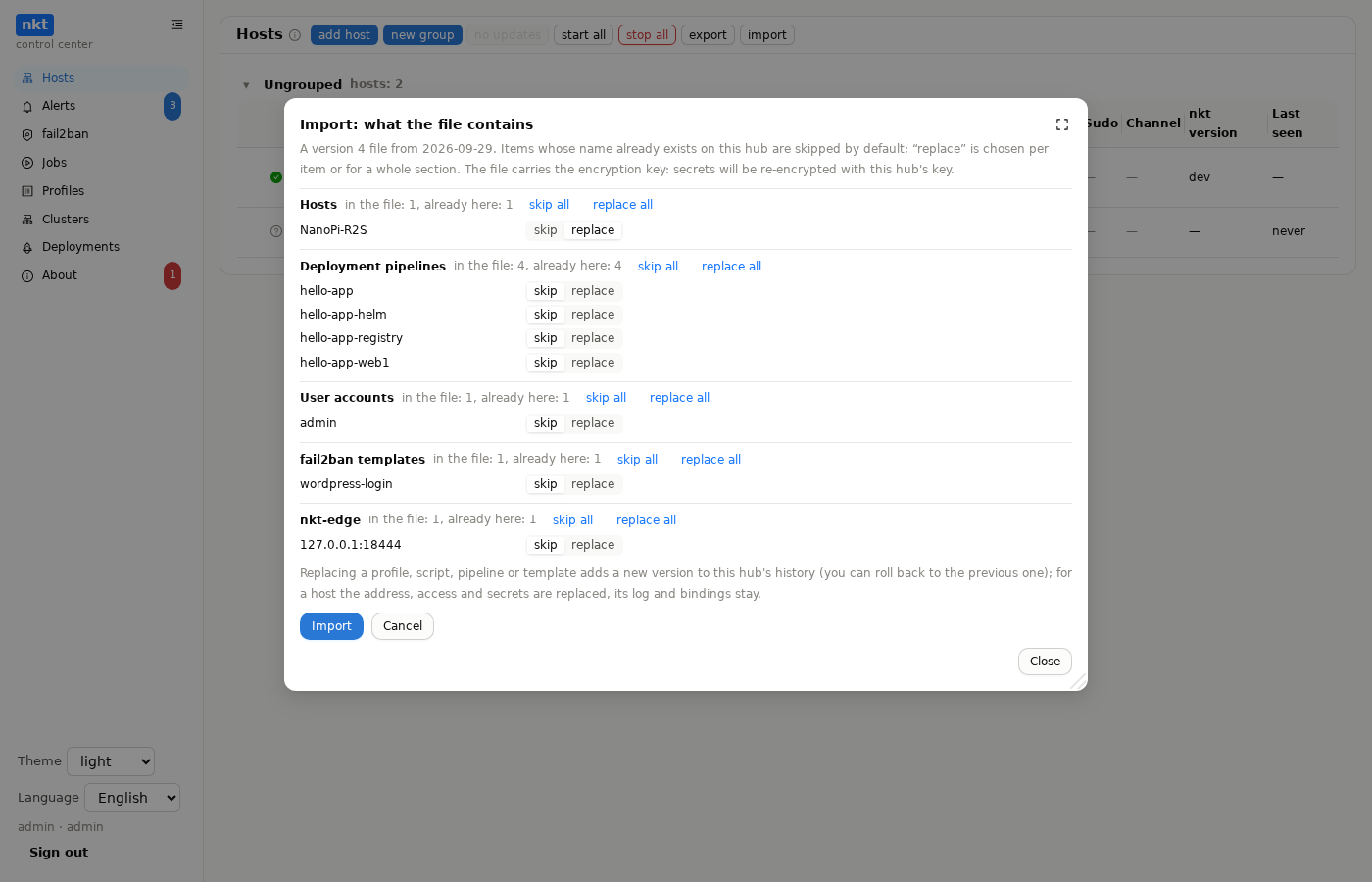
the window shows what the file contains by section and what of it already exists on the hub (by name). Every match gets "skip" (the default) or "replace", and each section has "skip all / replace all". Replacing a profile, script, pipeline or fail2ban template adds a new version to this hub's history (you can roll back to the previous one; for a pipeline's
.envtoo); for a site the domains, proxy, target and state are replaced; for a host the address, access and secrets are replaced while its log and bindings stay; for a user account, the password hash, role and lock. Clusters with a taken name are only skipped. After the import comes a report by section: added, replaced, skipped, errors.A pipeline's webhook address is kept, so webhooks in GitHub, GitLab and Gitea keep working on the new hub. If the address is already used by another pipeline on the receiving hub, a new one is issued and the report says so.
nkt hub importon the command line skips matches; to replace, use the import window.Not carried over: cluster images (only their list — the import says which to copy into
cluster-imagesby hand), the package cache, jobs, deployment history, the alert log, saved model answers, the fallback channel certificate pin (the new hub pins its own)."Monitoring" history, behind a separate checkbox in the export window (off by default, since the file gets noticeably larger): the hourly and daily load and availability summaries the hub keeps, with the availability targets. The import plan has its own section, and hosts are matched by name (the hub machine is "localhost"). If a host has no history here, it is added; if it has, it is skipped by default, and "merge" adds the missing hours and days without touching the existing ones. If there is no host with that name, its history is skipped and the report says so.
Hosts without nkt after an import. An import installs nothing on hosts. Right after it, the hub signs in to the moved hosts over SSH in the background: where nkt is missing (for example, it was removed before the move), the host becomes "not installed", gray with an install button, rather than red "unreachable". Above the host list, a "Hosts without nkt: N" bar with an "Install" button opens the install window with those hosts already selected (see "Installing nkt on hosts"). The bar can be closed with its cross; it does not come back until a new host without nkt appears (remembered in this browser).
Moving narrow-sudo hosts. Such a host holds the public key of the hub that narrowed it and would reject the new hub's signature. When a full export (with the key) is imported, the new hub keeps the previous hub's signing key (encrypted with its own master key) and signs with it for such hosts. After nkt is installed or updated on the host (and on "Narrow sudo"), the hub replaces the host's key with its own via the
hub-sudo rekeyoperation signed with the previous key: trust is handed over by the party the host already trusted, and it grants nothing beyond what the previous hub had. A full export of the new hub carries the inherited keys too, so the next move works as well.