Containers and virtual machines
One section with tabs: Docker, Podman, LXD and libvirt/QEMU virtual machines.
Deleting
Docker and Podman containers, LXD instances and their snapshots, libvirt machines, container images, machine images and disk files, LXD networks and images and Kubernetes objects have checkboxes — the selected ones are deleted at once. Potentially long deletions (containers, instances, snapshots, machines, container images, Kubernetes objects) run as a background job with a log: while an object is being deleted, its row is locked — even after a page reload — and clicking again opens the same job. When it finishes, the host is rescanned and the tables are rebuilt, related ones included: after deleting a machine with its disks, the disk file list too.
OS icon
Before the name of a container, instance or machine is the icon of its OS (Ubuntu, Debian, Alpine, Windows, Fedora, RHEL and relatives…; other Linux — a penguin, unknown — “?”); the tooltip gives the full name and where it comes from:
- Docker and Podman container —
/etc/os-releaseof the running container (oneexecper container, remembered by container ID); with no file or nocatinside (scratch, distroless) — the image's Linux; - LXD instance —
image.os/image.releaseof its configuration (for a Windows machine installed from an ISO set them yourself:lxc config set <name> image.os=Windows); - libvirt machine — the QEMU guest agent (
guest-get-osinfo, for a running machine, every 10 minutes), otherwise the libosinfo tag in the XML (set by virt-install and virt-manager), otherwise a guess from Hyper-V flags in the XML — a semi-transparent Windows icon with “?”.
A Windows guest has no text console — only “Screen” (VNC or SPICE). The icon is also in window titles: console, logs, “Inspect”, screen, editing.
Docker
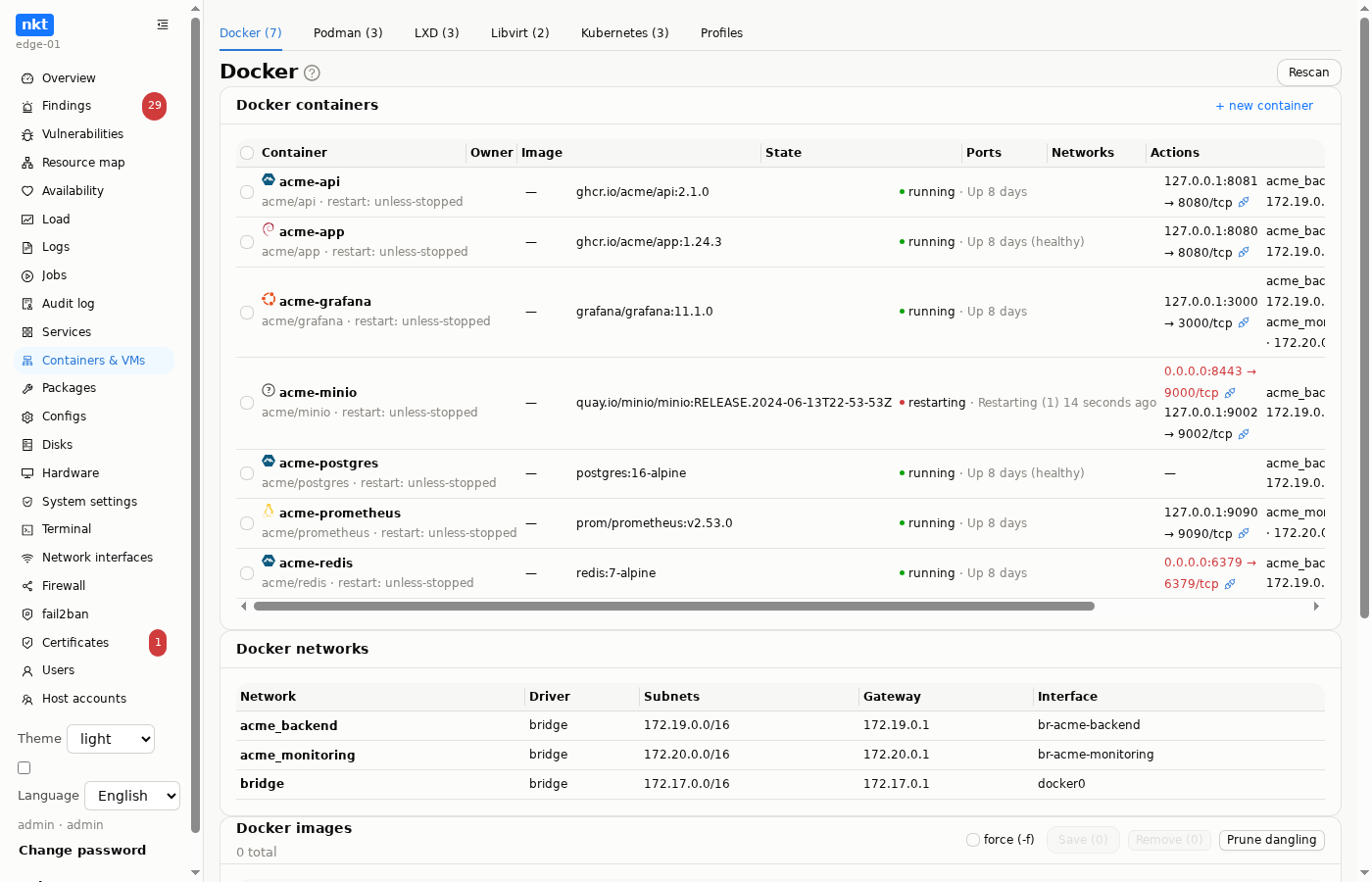
- Containers: status, image, ports, networks; start, stop, restart, remove, logs; create a container; scan compose stacks.
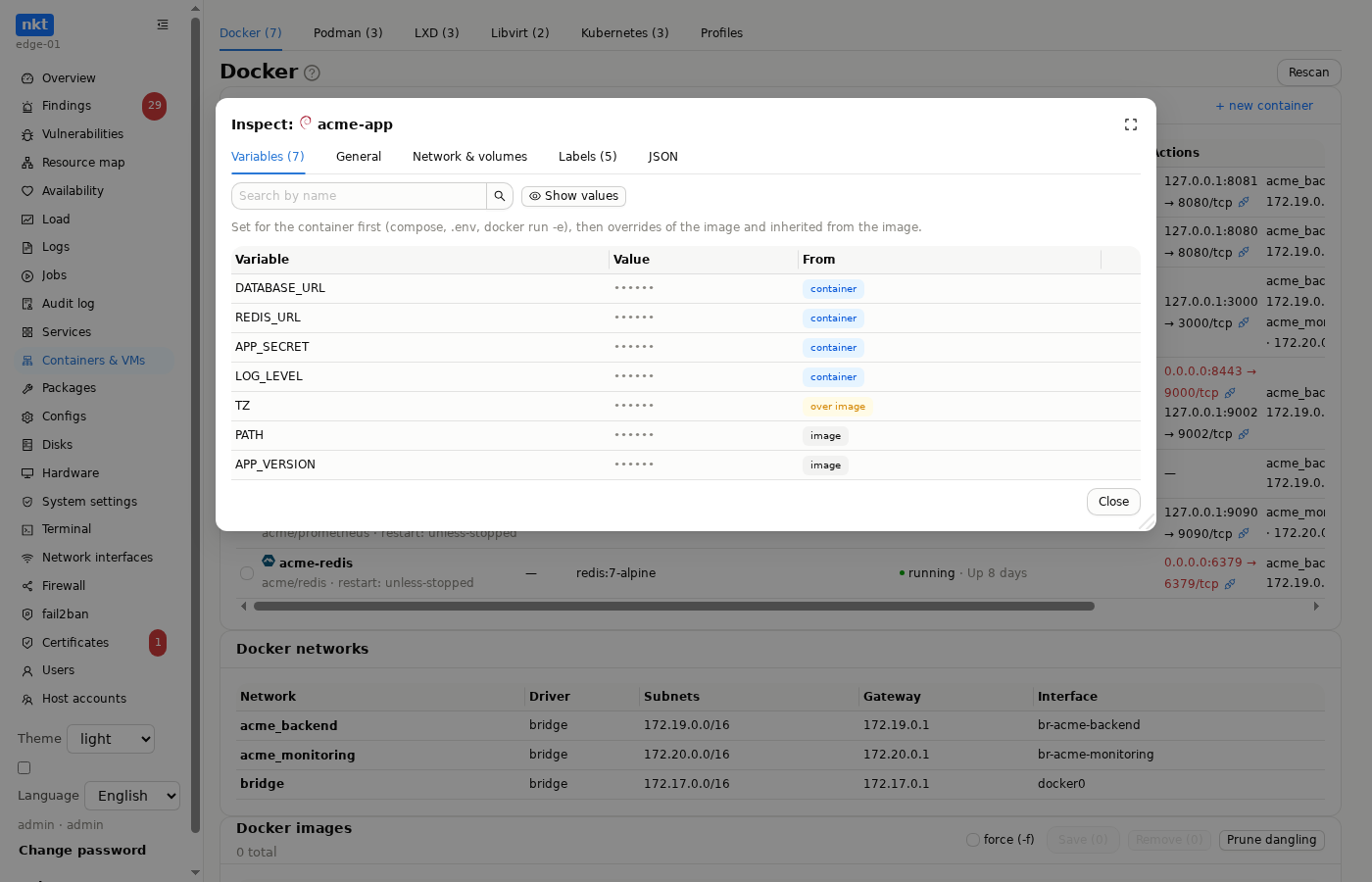
- Inspect (an icon in the container row), with tabs:
- Variables — the container environment with its source: “container” (compose,
.env,docker run -e), “over image” (its own value instead of the imageENV), “image”. You can see whether a new.envvalue reached the container. Values are hidden by default — the server does not even send them; an administrator reveals them with “Show values” after a confirmation, and this is recorded in the audit log (container.inspect_reveal); the viewer role sees names only; - General — the image and its ID (with a warning when the tag already points to a newer image while the container runs the old one), state and healthcheck, start time, restart policy and count, command, user, memory and CPU limits, the compose stack;
- Network & volumes — published ports, volumes and mounts, networks with addresses;
- Labels and the full
docker inspectJSON (variable values are masked there too).
- Variables — the container environment with its source: “container” (compose,
- Images: size, date, who uses it; remove, save to a tar on the host (as a job; the archives show up in the "Image archives" card), prune orphaned layers.
- Stacks: the host's compose files —
up,down,restart; compose is edited in the config editor with adocker compose configcheck; a new stack from a template. - No Docker on the host — a bar with an install button right in the tab (the official docker.com repository or distribution packages with compose), as a background job with the standard log window.
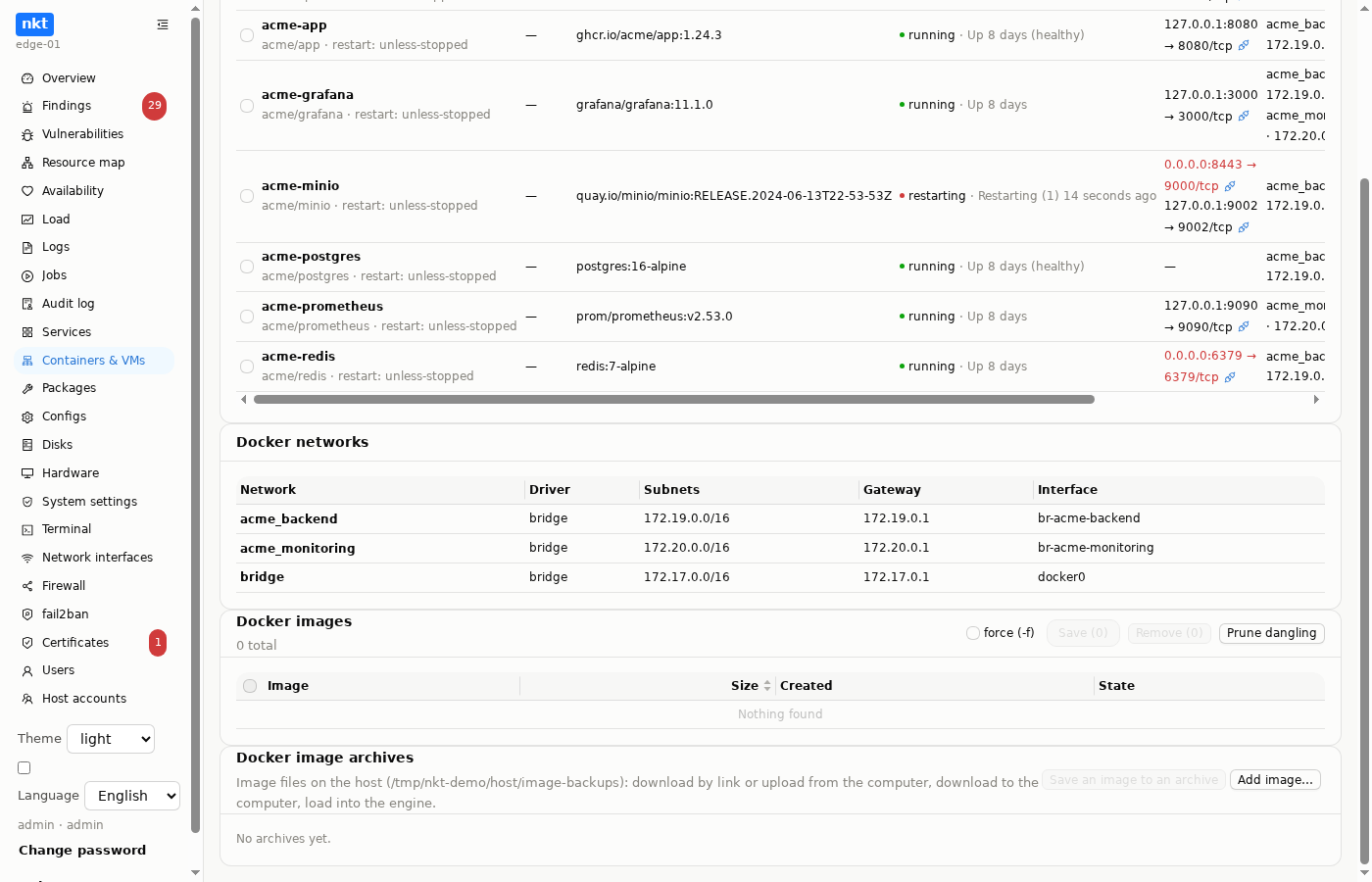
- Image archives: a card below the images (Podman and LXD have the same): image files on the host in the nkt save directory. "Save an image to an archive" runs
docker savefor the selected image as a background job; "Download" gets the file to your computer; "Load into Docker" runsdocker loadas a job; "Delete". Images saved earlier with the images' "Save" button are here too. Download and upload are admin-only, since an image may carry secrets.
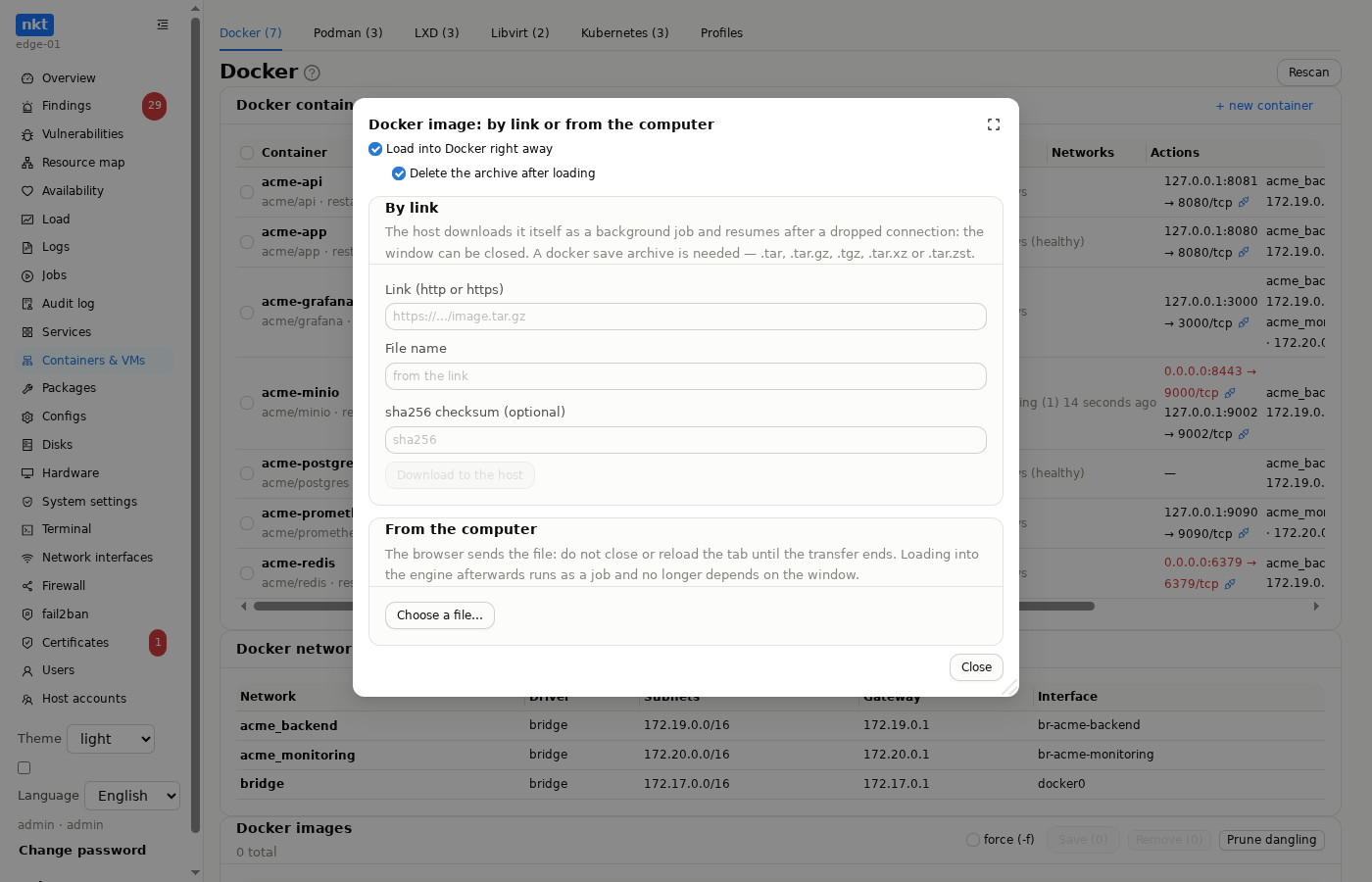
"Add image…" (Docker and Podman) — a
docker savearchive (.tar,.tar.gz,.tgz,.tar.xz,.tar.zst) in two ways:- by link (http/https) — the host downloads it itself as a background job with the standard log window: the browser window can be closed, and after a dropped connection or an nkt restart the download resumes where it stopped. The file name defaults to the link's; an optional sha256 checksum is verified on the finished file, and a mismatching file is not kept. A host without internet access downloads through the hub's cache, like machine images;
- from the computer — also a host job, created before the first byte: the log window opens at once, the host writes the percentage of the bytes that have arrived into the job, and the progress is visible in the host's "Jobs" and in the background operations indicator from any section, on the hub too. The browser sends the file, so moving between sections and to the hub does not interrupt the transfer, while closing the tab does (the browser asks first); a broken-off transfer is a job error with the percentage where it stopped, and no partial file is kept.
The "Load into Docker right away" checkbox (on by default) — after the download or transfer
docker loadis the next step of the same job. Below it is "Delete the archive after loading" (also on; active only together with the first one): after a successfuldocker loadthe archive is deleted — the disk space comes back, the image is already in the engine. If loading into the engine failed, the archive stays for a retry. LXD keeps the "Upload from computer" button, also as a job, without loading into an engine; the same goes for your own machine image in the libvirt section (after the transfer the job moves it to the disk directory itself).
Podman and LXD
Podman — containers through its own socket, the same lifecycle as Docker. LXD — containers and virtual machines with one tool: launch, start, stop, delete.
Creating an LXD instance or a Podman container runs as a background job: the job log window opens right away with image download percentages, closing it does not stop the creation, and the job stays in "Jobs" — on the host and through the hub.
Password login. When creating an LXD instance or a libvirt machine you can set a user and password or generate one. In console and screen windows the "Login" line shows the login and whether a password is set. The "show" button reveals it to an administrator, "set password" sets a new one as a background job: via lxc exec and chpasswd in LXD, via qemu-guest-agent in libvirt. The password is stored in nkt encrypted and never goes into job parameters or a command line.
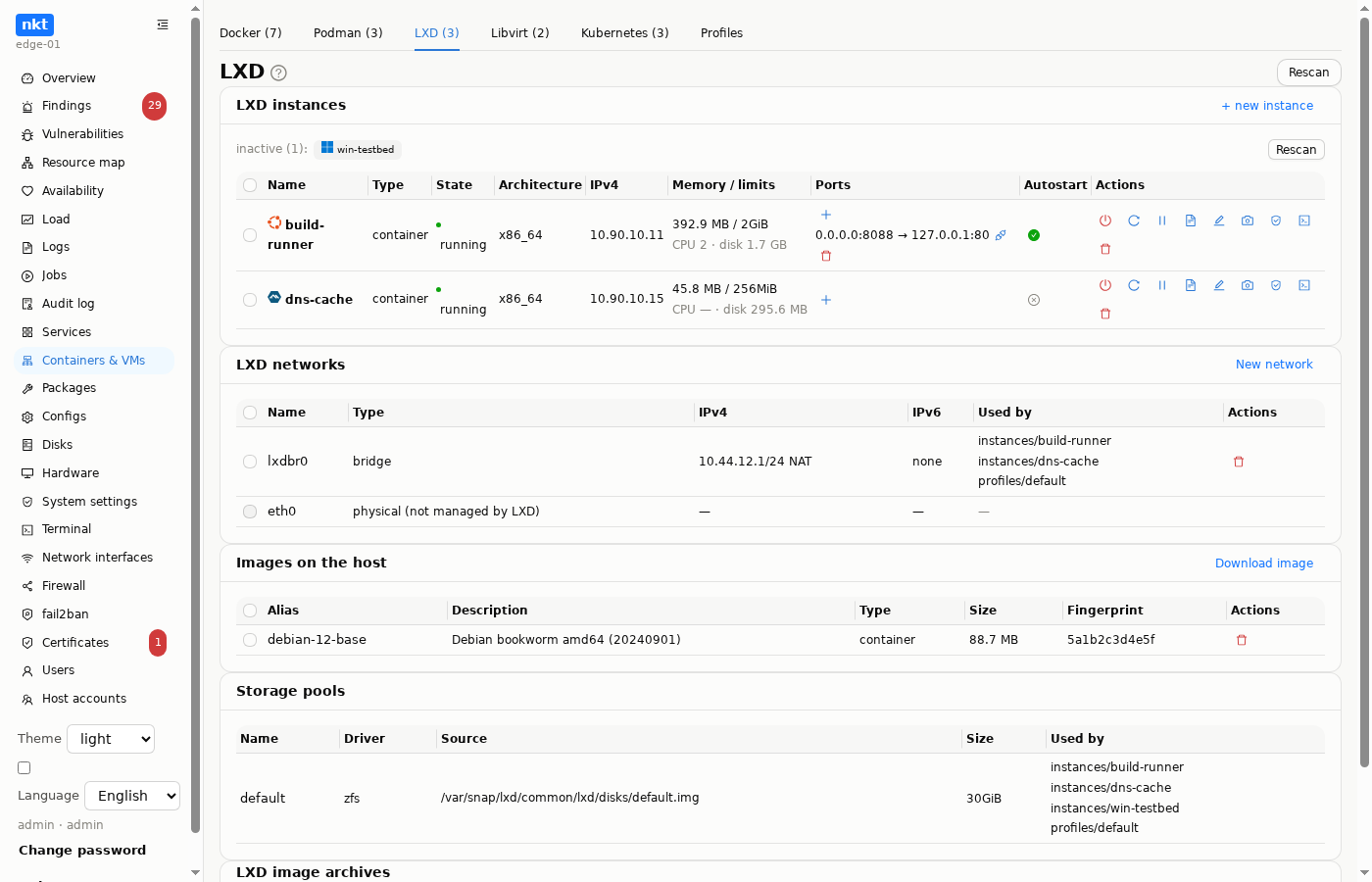
LXD instance rows show memory and limits (limits.memory, limits.cpu), disk, forwarded ports (proxy devices) with "probe port", autostart as one button (boot.autostart), logs (the journal inside the instance or LXD's own log) and the console.
Instance snapshots open in their own window from the row: take one (optionally with memory), restore (lxc restore), delete. Taking and restoring run as background jobs with the log window, as do stopping and restarting an instance: a machine shuts down longer than a request should wait. A snapshot lives on the same storage pool; moving to another host needs a backup.
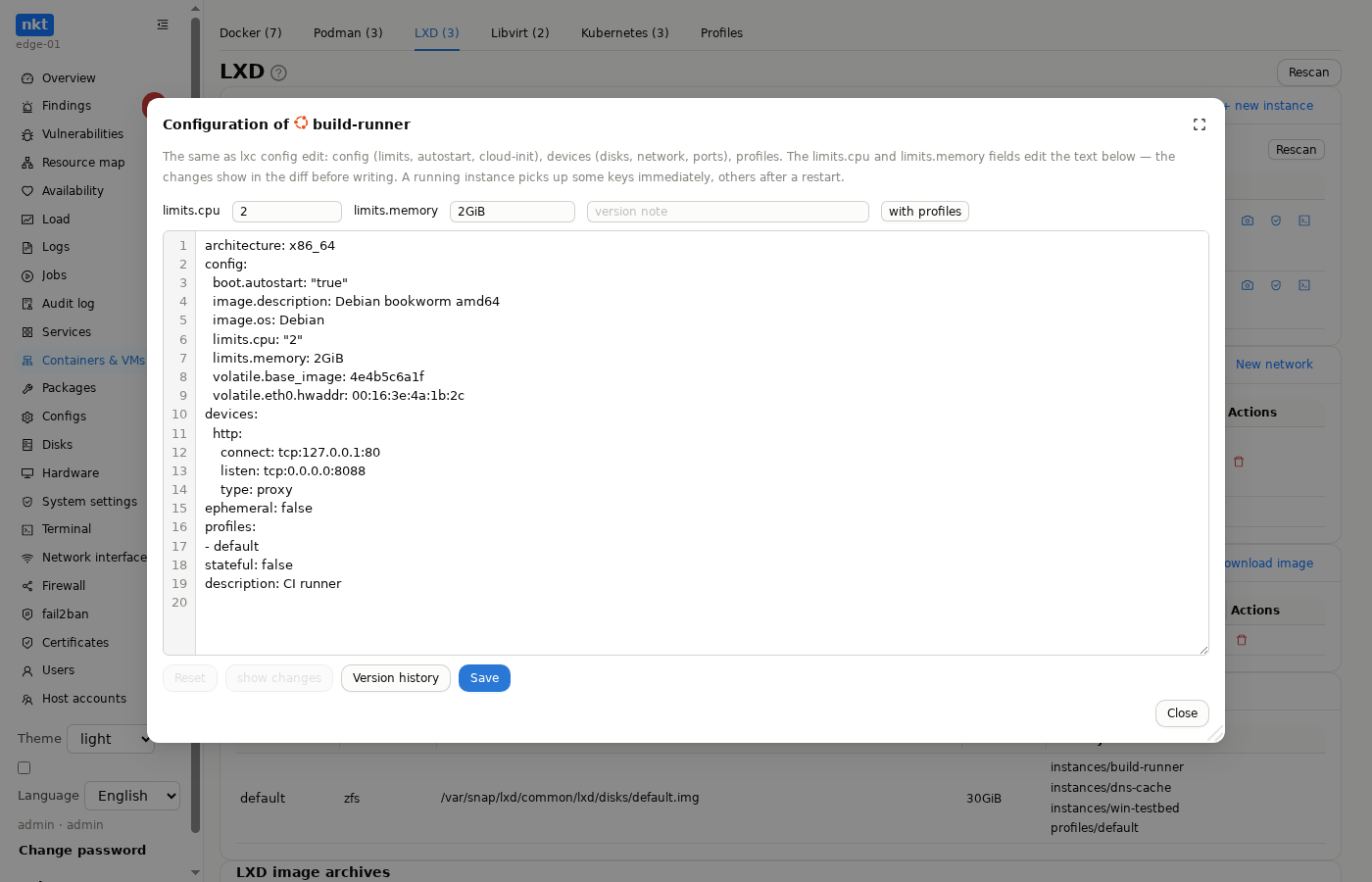
The instance configuration (lxc config show/edit) is edited in a window: text, quick limits.cpu and limits.memory fields, a diff before writing and version history with rollback. Next to it — the effective configuration with profiles (--expanded), read-only.
Port forwarding (a proxy device) is added with "+" in the ports column and removed with the bin next to a port: a form builds the device, and it is written through the same configuration window — with a diff and a version in history. Below the instance list are LXD networks (create a bridge, delete a managed network), images on the host (delete, download in advance from images: or ubuntu: with live output) and storage pools (read-only).
- No Podman or LXD: a bar with an install button (Podman via apt, LXD via snap and
lxd init --auto). - Image archives, as with Docker: Podman uses
podman saveandpodman load; LXD has "Export an image to an archive" (lxc image export: one file or a metadata + root file system pair,.root) and "Import into LXD" (lxc image import, together with the.rootfile for a split image, with an optional alias). Download and upload from your computer work the same way.
Libvirt (KVM virtual machines)
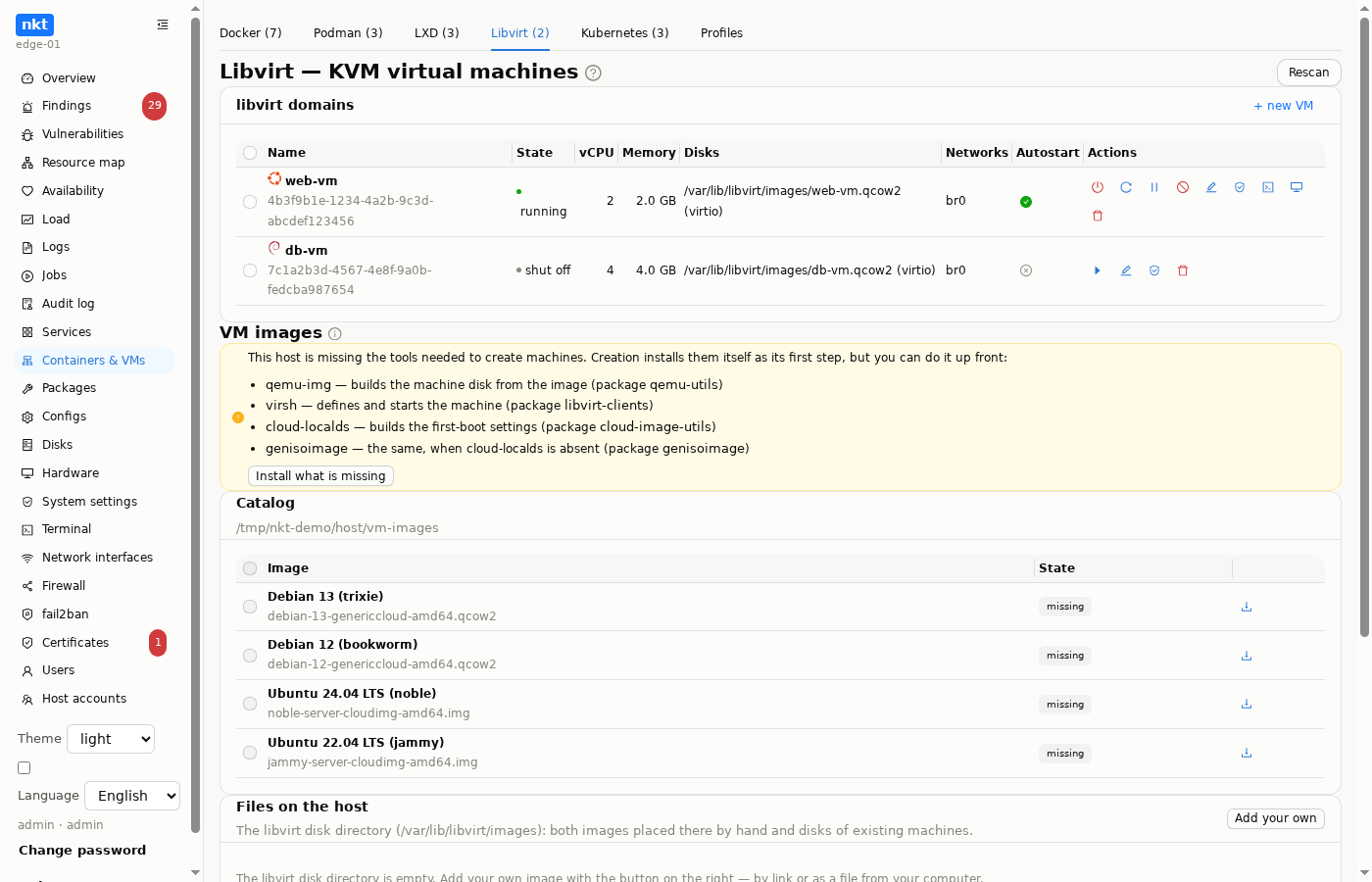
- No libvirt/KVM on the host — a bar with an install button: the daemon, clients,
qemu-utils,virtinstand qemu for the host architecture. - libvirt domains: start, shut down, force off, reboot, autostart, delete with or without disks; machine addresses.
- Machine images: besides uploading from your computer, "Download to computer" for a downloaded library image and for a file in the libvirt disk directory.
- Machine screen — a "screen" icon on a running machine: VNC right in the browser (noVNC), with Ctrl+Alt+Del and a "view only" mode, through the hub too. A machine with SPICE graphics only opens over SPICE (spice-html5), and the window offers "Add VNC" — an XML edit with a diff. A running LXD virtual machine gets the same SPICE screen. Client licenses are in
THIRD_PARTY_NOTICES.en.md. - Console — an icon in the row of a running container (Docker, Podman:
exec, bash or sh, a user can be set), LXD instance (lxc exec) and machine (serial consolevirsh console, exit with Ctrl+]; on connect nkt presses Enter itself, and the "login:" prompt appears). The web terminal must be enabled. The console runs as root, even when the host terminal under a hub runs as the SSH user. - Backup — an icon in the row of a machine and a container (Docker, Podman, LXD via
lxc export/lxc import; a compose container — the whole stack): archives on the host in/var/lib/netknownsthat/backups, creation as a background job, download, restore as a copy or over the original. A running machine is not stopped — disks move to a snapshot while copying. - LXD and Podman install from their tabs when missing: Podman — apt, LXD — snap (snapd is installed first) and
lxd init --auto. The image for a new LXD instance is picked from a list:images:,ubuntu:or those already on the host; container or VM. - Each row has one power button by state (running — "stop", stopped — "start", paused — "resume"); restart and pause only on a running one.
- Starting and restarting a container runs in nkt's command window: the
docker startoutput, the state a few seconds later and, if the container is not running, the tail of its logs with the reason. Logs — an icon in the row: livedocker logs, tail 200/1000/5000 lines, "follow", "timestamps". Same for Podman. - Deleting a machine is one button; "delete the machine's disks too" is a checkbox in the confirmation window, off by default.
- Machine configuration (XML) — the pencil in the row: "text", "history" and "blocks" tabs (domain elements and devices one by one: disk, network interface, graphics — edit, delete,
+ disk/+ interface/+ graphicswith a template); before writing, a window shows the diff "on disk → draft", andvirsh defineruns only after "Write". The pencil opens/etc/libvirt/qemu/<name>.xmlin the config editor, with version history, rollback andvirsh defineon save. For a running machine the changes take effect after it restarts. - New machine from a cloud image: name, cores, memory, disk, network, user and SSH key via cloud-init. Missing tools (
virt-install,qemu-img…) install themselves. Machine templates — to create identical ones again. - Images: a catalogue of Ubuntu, Debian and other cloud images — downloaded with a checksum check; your own images — upload a file, move it into the disk directory.
- libvirt networks: list, a NAT network with DHCP and autostart (the subnet is checked against the host's networks and interfaces), a bridge onto a host interface.
- The domain XML is edited in the config editor with a
virt-xml-validatecheck and applied viavirsh define.
Machines from the hub
On the hub a machine is created on a host straight from the host list, nkt is installed into it automatically and the group profile is applied right away — see Hub.
Kubernetes
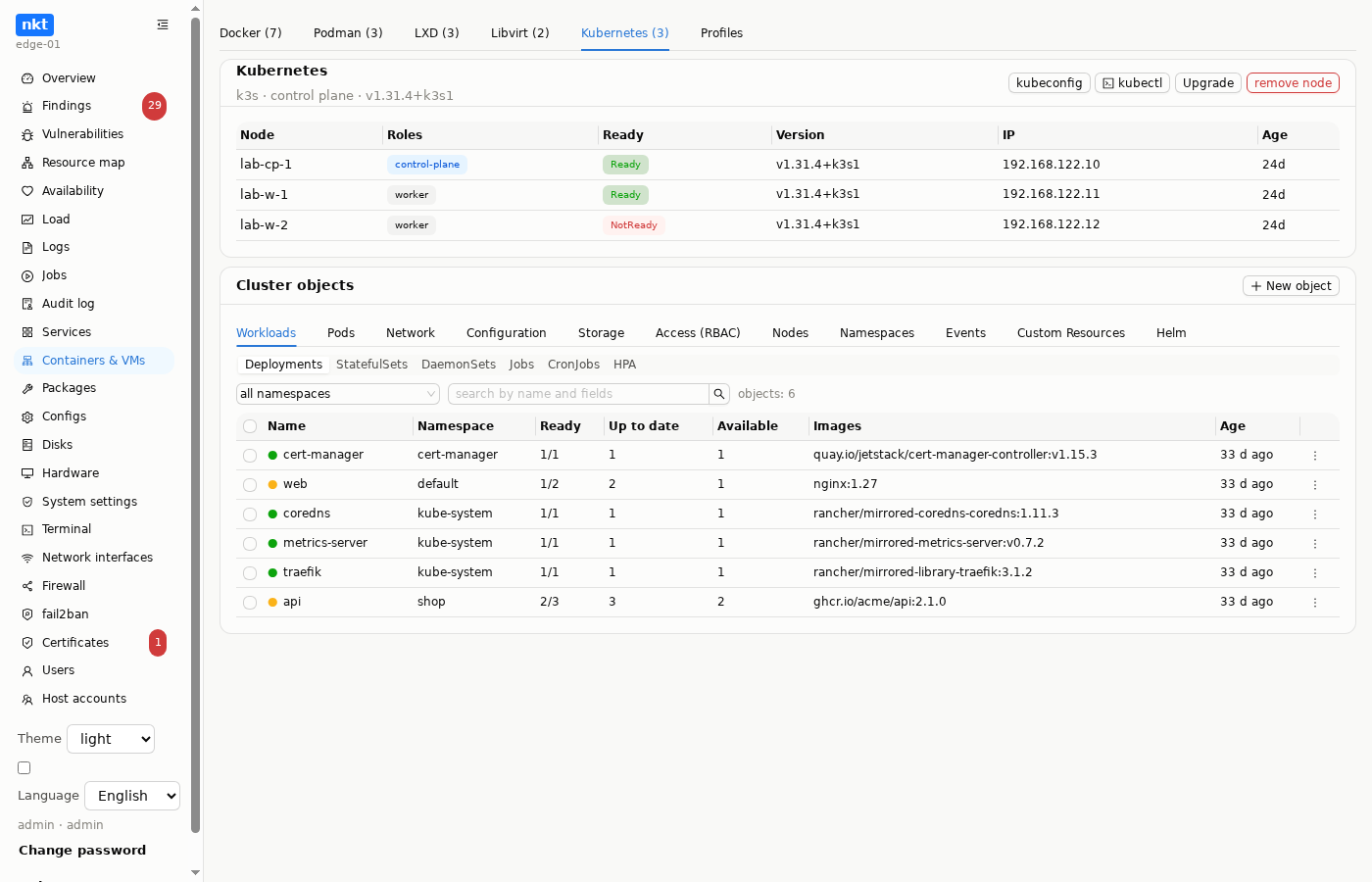
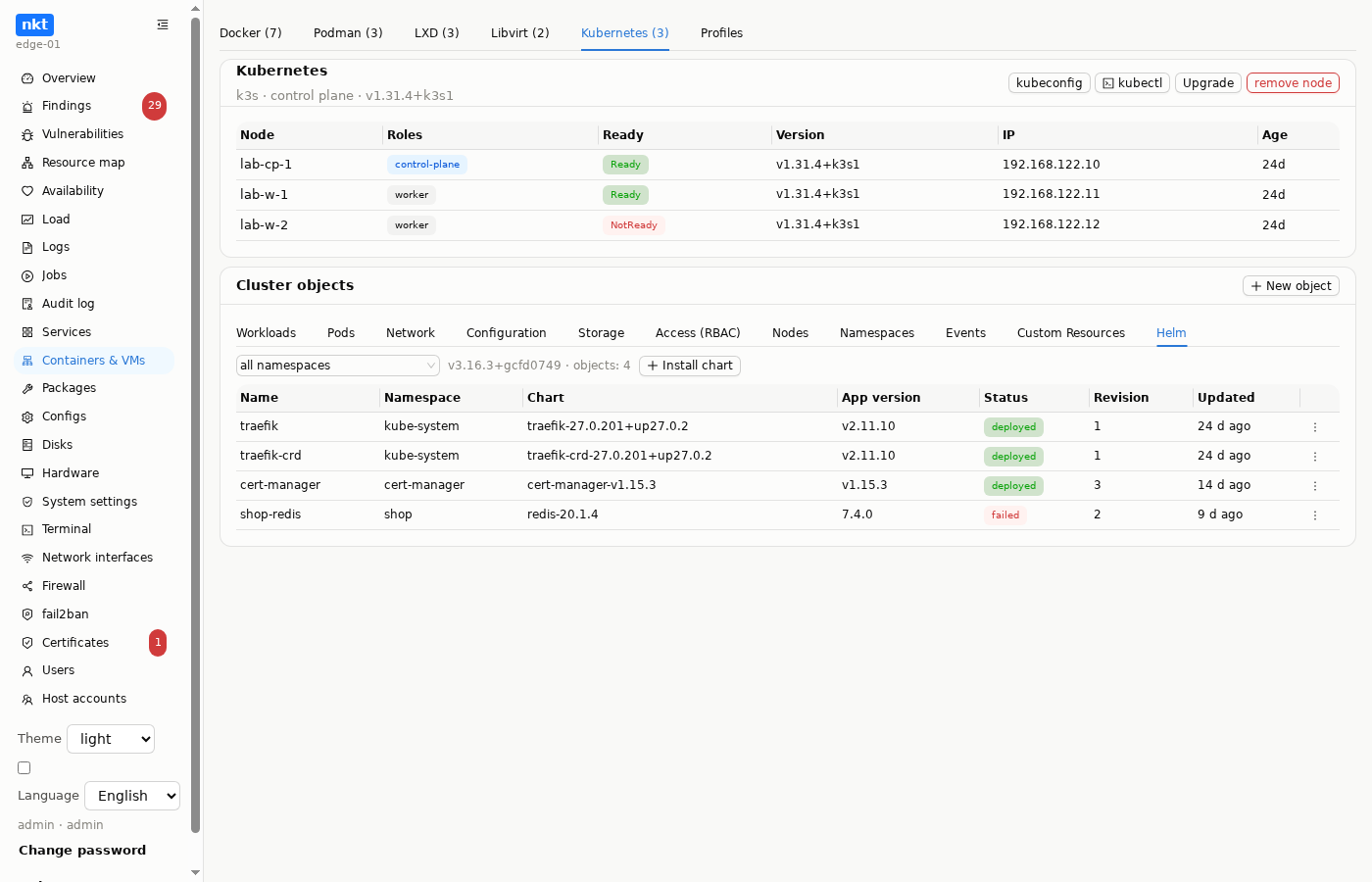
On a cluster node (a machine created by the hub via “new cluster”) — the Kubernetes tab: flavor and role, cluster nodes with roles and Ready, pods by namespace, kubeconfig and removing the node from the cluster.
On a control plane, cluster objects follow by section: Workloads (Deployments, StatefulSets, DaemonSets, Jobs, CronJobs), pods, network (Services, Ingress), configuration (ConfigMaps, Secrets), storage (PVC, PV, StorageClass), access (ServiceAccounts, Roles, bindings — a ServiceAccount shows which roles are bound to it), NetworkPolicy, HPA, nodes, namespaces, events and Custom Resources — kinds from the cluster's CRDs with their own columns. Every section has a namespace filter shared by all sections and a search; the dot color is the object's state. Secrets list only key names; values come from the "reveal" button for an administrator, and every reveal is recorded in the audit log.
Every row has an actions menu. "Describe" (kubectl describe with events) is available to everyone, the rest to an administrator: pods have logs (tail, follow, previous run) and a kubectl exec console; Deployments and StatefulSets — scaling, restart (rollout restart), rollout history and rollback to a revision; CronJobs — "run now" and suspend; nodes — cordon/uncordon and drain as a background job; a namespace can be created and deleted, any object deleted. Every action is recorded in the host audit log. "Open in the browser" on a pod or service forwards its port (kubectl port-forward) and opens the application in a new tab via a one-off link — on a separate forward address (port 8446, NKT_FORWARD_ADDR) where the application has its own origin and no access to the nkt session. Open links are listed in the same window and closed with a button.
The YAML of any object (except secrets) opens from the same menu: before saving — a text diff and kubectl diff from the cluster, saving runs kubectl apply, every edit is a version in the history with rollback. The "New object" button creates objects from templates (Deployment + Service, Ingress, ConfigMap, CronJob). The YAML windows have a block mode, like the configs: objects, containers, ports, rules and keys as blocks with editing, deletion and "+ item"; writing goes through the same diffs.
The Helm section lists the cluster's releases with a namespace filter: history and rollback to a revision, values editing with a diff and upgrade, uninstall, installing a chart from a repository or oci://. The release window shows the user-supplied values (helm get values), all values of the release and the chart default values — any of them can be taken "to draft". Everything runs as background jobs; if helm is missing on the host, the "Install Helm" button installs it (the official archive into /usr/local/bin).
Open in browser (port forward)
"Open in browser" on a pod or service: pick a port, kubectl port-forward on the node and a new tab with a one-time link. Links of open forwards stay in the same window — they can be opened again or closed.
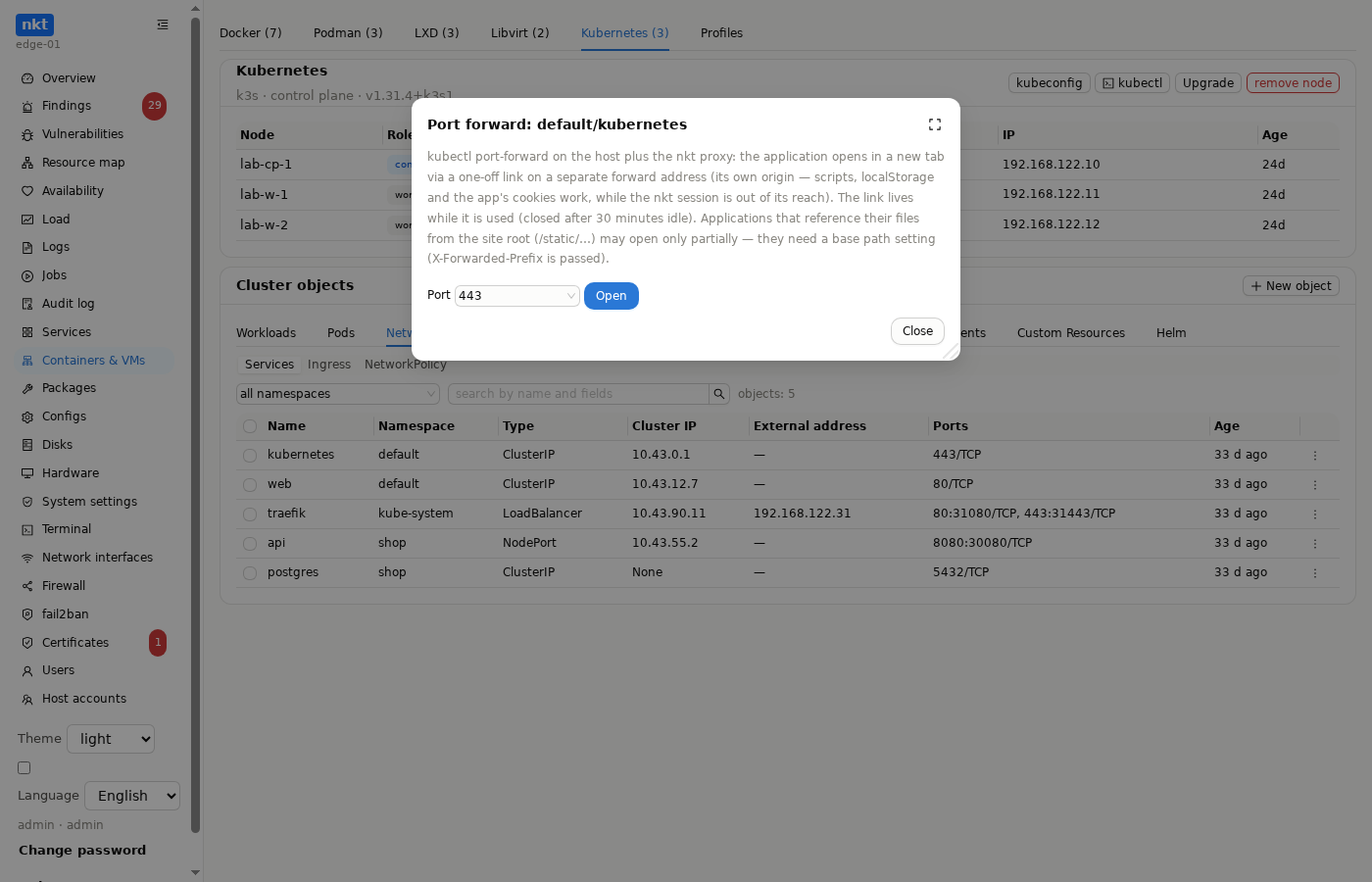
- The application is served from a separate forward port — 8446 on the same host as the UI (
NKT_FORWARD_ADDR). A different origin: the application's scripts work as usual but can't see the nkt session. - Through an SSH tunnel, forward this port too:
ssh -L 8077:127.0.0.1:8077 -L 8446:127.0.0.1:8446 …. - Behind a reverse proxy, set up a separate name or port and set
NKT_FORWARD_PUBLIC_URL. NKT_FORWARD_ADDR=off— forwards go through the UI's path in a sandbox: simple pages work, applications relying on JavaScript and cookies don't.
More — Ports and access.
"Upgrade" on the Kubernetes card upgrades this node to the chosen minor version as a job (k3s by replacing the binary, kubeadm with kubeadm upgrade); a cluster created by the hub is upgraded as a whole from the "Clusters" section — node by node, with drain and uncordon. "Remove" takes Kubernetes off the node (k3s-uninstall.sh or kubeadm reset with package removal) as a job too: it takes minutes, and a dropped request used to leave the removal half done.